Workspace settings
The workspace settings apply to all members of the workspace. To open them, open Settings. Then click an item under Workspace in the settings sidebar: Overview, Labels, Members, Agents, Integrations or Export.
Each member can see each of these pages. Some actions are for admins only. Read Roles. The Agents page has its own docs page: Agent settings.
Overview
The Profile section holds the Workspace name.
- Change the Workspace name.
- Click Update.
You cannot change the URL of the workspace. Vantik makes it from the first name of the workspace, when you make the workspace.
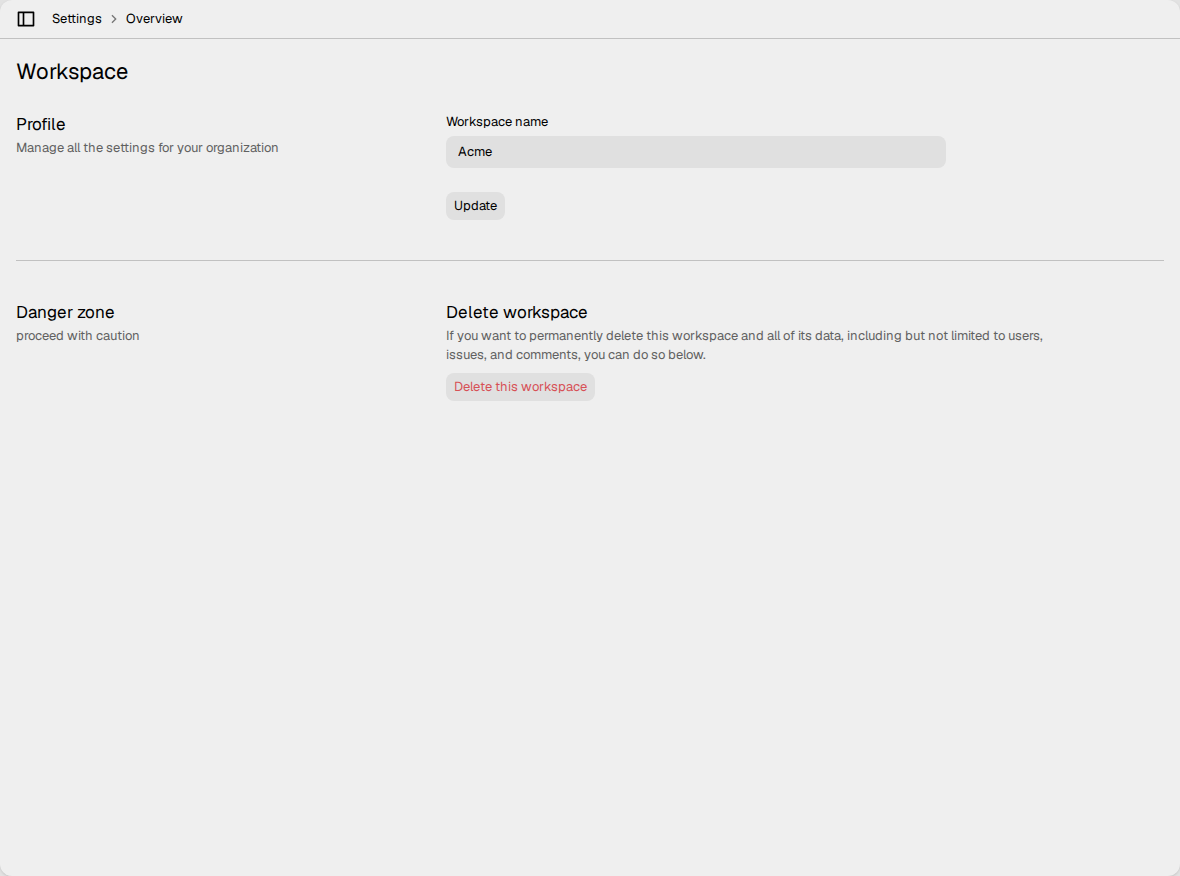
The Danger zone section shows a Delete this workspace button. The button does nothing now. Vantik has no way to delete a workspace from the webapp.
Labels
The Workspace labels section holds the labels that all teams can use. To make a label that only one team can use, open the Labels settings of that team. Read Team settings.
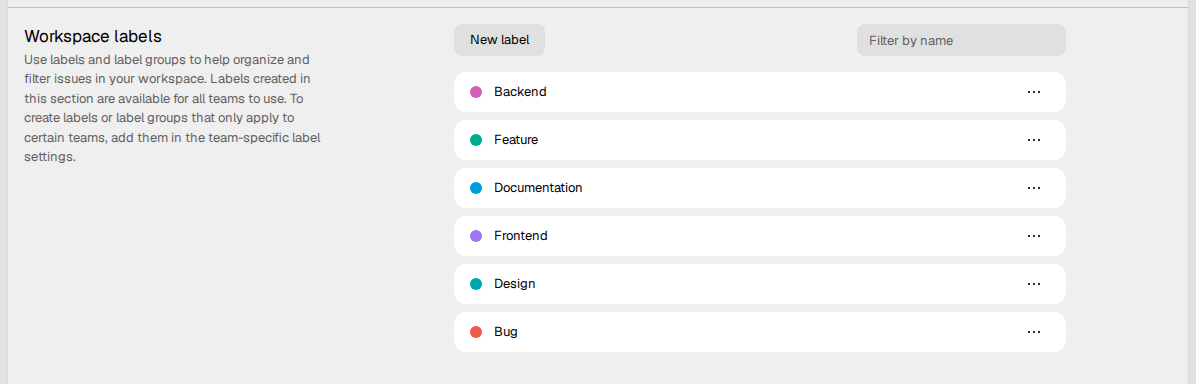
To make a label:
- Click New label.
- Type the Label name.
- Click Save.
Vantik gives the new label a color. You cannot select the color.
To change or delete a label, click ... on its row. Then select Edit or Delete. Edit changes the name only. Delete asks you to confirm. Click Continue to delete the label.
Use Filter by name to find a label. Each member can make, change and delete a workspace label.
Members
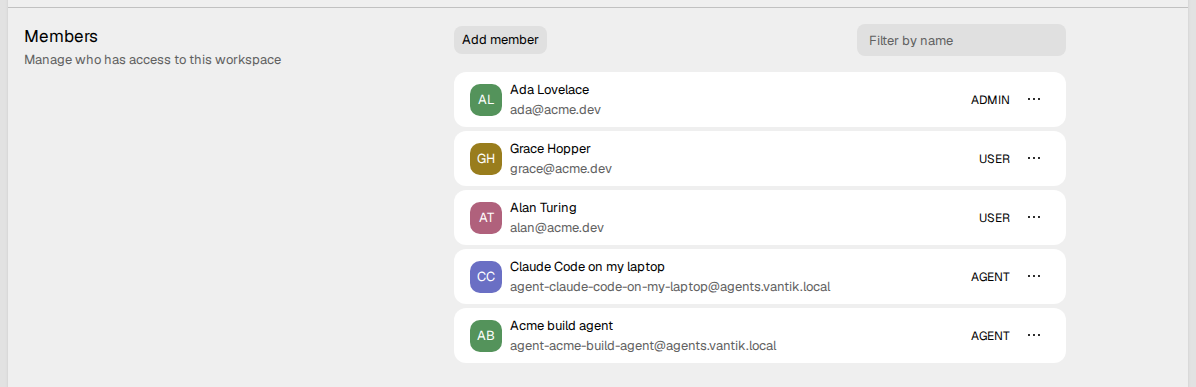
The Members section lists the members of the workspace, with the role of
each member. The list also shows the agents of the workspace, with the role
AGENT. Read Roles. A member that an admin suspended shows under Suspended. Use
Filter by name to find a member by name or by email.
How to invite a person
Only an admin can invite a person. The Add member button shows for each member, but the invite fails if you are not an admin.
- Click Add member.
- In Emails, type one or more email addresses. Put a comma between two addresses.
- In Invite as, select User or Admin. The default is User.
- In Add to teams, select one or more teams. You must select a team.
- Click Invite.
Vantik sends an email to each address. The email has a link that signs the person in. The link works for 7 days.
When the person signs in, Vantik shows the invites of that person. The person clicks Accept or Decline. If the person accepts, Vantik adds the person to the workspace with the role and the teams of the invite.
To send the email again, invite the same address again. This does not change the role or the teams of the invite. You cannot cancel an invite.
How to suspend a member
Only an admin sees the menu on the row of a member.
- Click ... on the row of the member.
- Select Suspend.
The webapp does not let a suspended member open the workspace.
Vantik also refuses most requests from the access tokens of a suspended member. Some actions do not check the suspension, for example the CSV export.
Warning: Do not rely on a suspension to stop the personal agents of a member. Each agent has its own membership, and a suspension does not change it. To stop these agents, revoke them in Agent accounts.
The webapp has no way to undo a suspension. It also has no way to change the role of a member, or to remove a member from the workspace.
To add a member to a team or to remove a member from a team, use the Members settings of the team. Read Team settings.
Integrations
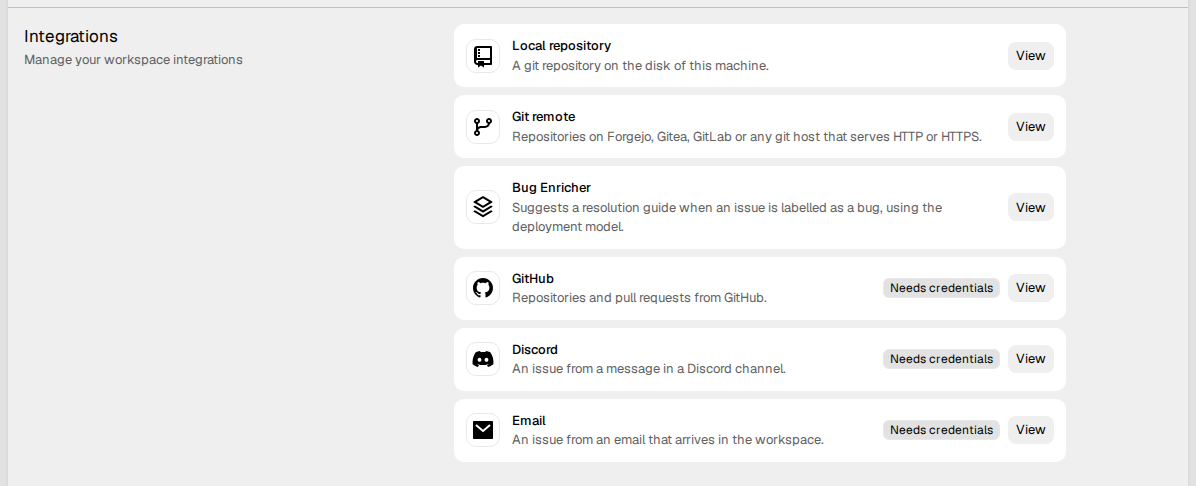
The Integrations section shows each integration that the workspace can use. Click View on an integration to set it up. An integration that needs credentials shows Needs credentials.
Read Integrations.
Export
The Export section makes a CSV file of your issues.
- Click Export CSV.
- Your browser downloads the file
issues.csv.
The file holds the issues of the teams that you are a member of. It does not hold deleted issues. Each row is one issue, with these columns:
- Number, Title and Description. The description is plain text.
- State, Labels and Priority. The priority is a number.
- Parent Issue.
- Created At and Updated At.
- Created By. This is the ID of the user, not the name.
- Team and Assignee.
The export holds issues only. It does not hold comments, projects, cycles or pages. Each member can export.

What a new workspace starts with
When you make an account, Vantik asks for your Full name, a Workspace name, a Team name and a Team identifier. Then click Continue.
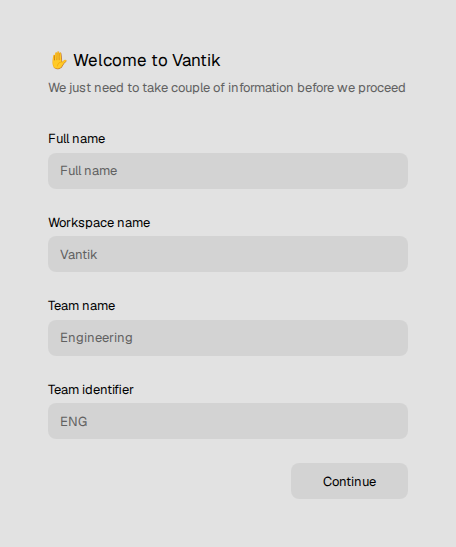
Vantik then makes these things:
- The workspace. You are its first admin.
- One team, with the name and the identifier that you gave. You are a member of it.
- The workflow states of the team: Triage, Unscoped, Backlog, Todo, In Progress, In Review, Done and Canceled.
- Six workspace labels: Bug, Feature, Design, Documentation, Frontend and Backend.
If a person invited you to a workspace, Vantik shows the invites, not this form.