Team settings
Each team has its own settings. To open them, open Settings. In the settings sidebar, open the team. Then click Overview, Members, Templates, Workflow, Cycles or Labels.
Overview
The Team section holds the Team name and the Team identifier.
- Change the Team name or the Team identifier.
- Click Update.
The name must have 2 to 50 characters. The identifier must have 2 to 5 characters. Each member of the team can change them. A workspace admin can also change them.
Warning: Do not change the identifier if people use the issue keys of the team. The key of each issue of the team changes with the identifier. Read Team identifiers and issue keys.
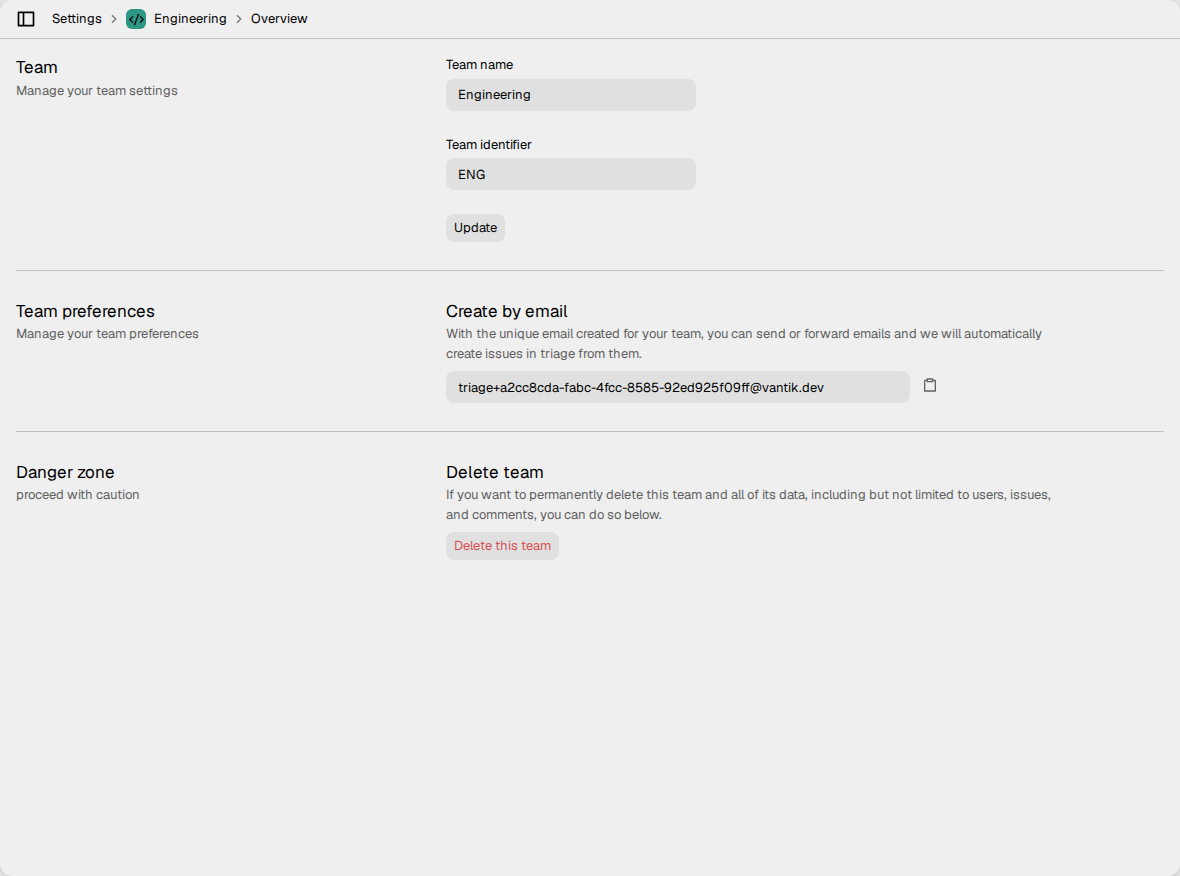
Create by email
The Team preferences section shows an email address for the team, with a
copy button. The address ends in @vantik.dev. No part of Vantik reads mail
at this address, so an email to it does not make an issue.
To make triage issues from email, use the Email integration. Read Email.
How to delete a team
Only a workspace admin can delete a team. You can delete a team only when it has no issues.
- In Danger zone, click Delete this team.
- Click Yes, delete team.
If the team has issues, Vantik tells you how many. Move or delete them first.
Members
The Team Members section lists the members of the team.
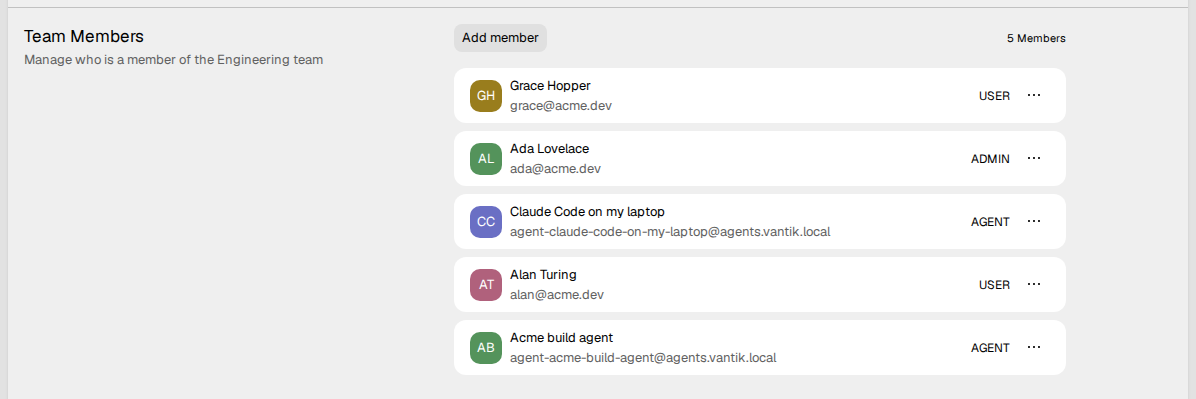
Only a workspace admin can add or remove a member of a team.
To add a member:
- Click Add member.
- Select a member of the workspace. The list shows only the members that are not in the team.
To add a person who is not in the workspace, click Invite people. Read How to invite a person.
To remove a member, click ... on the row of the member, and select Remove from team.
Templates
The Templates section holds the issue templates of the team. Read Templates.

Workflow
The Workflow section holds the states that an issue of the team can have. Each state belongs to one category: Triage, Backlog, Unstarted, Started, Completed or Canceled. The category tells Vantik what a state means, for example that an issue is done.
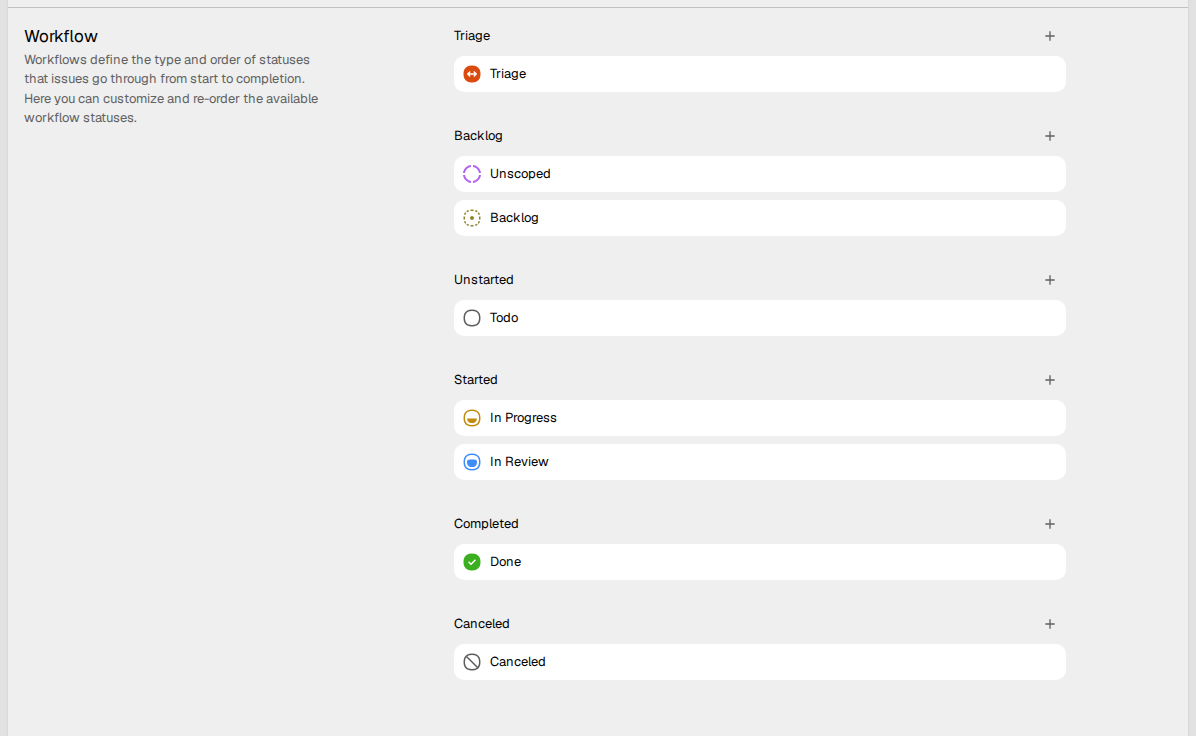
To add a state:
- Click + next to a category.
- Select a color, and type the Workflow name.
- Optional: type a Workflow description.
- Click Save.
To change a state, put the pointer on it, and click the pencil. To change the order of the states, drag a state. A state stays in its category. You cannot delete a state.
The Triage category holds the issues that a person must sort. Read Triage.
Cycles
The Cycles section turns cycles on for the team, and sets how Vantik makes them. Read Cycles.

Labels
The Team labels section holds the labels that only this team can use. It works as the workspace labels do: click New label, type the Label name, and click Save. Click ... on a row to edit or delete a label.
The labels of the workspace do not show here. Read Workspace settings.
