Agent settings
Overview
The Agents page of the workspace settings controls the agent runs of the workspace. It holds the model keys, the defaults of a run, the review cycle, the git token, and the agent accounts.
To open it, open Settings, and click Agents under Workspace.
Only a workspace admin can use this page. A different member sees only a message that tells this.
The page has these sections, in this order:
- Model access
- How the work is checked
- Repository access
- How to verify the work
- Does knowledge help?
- Can triage decide alone?
- Agent accounts
Model access
This section holds the keys of the model providers that agent runs call. Without a key, Vantik cannot start a run in its hosted sandbox.
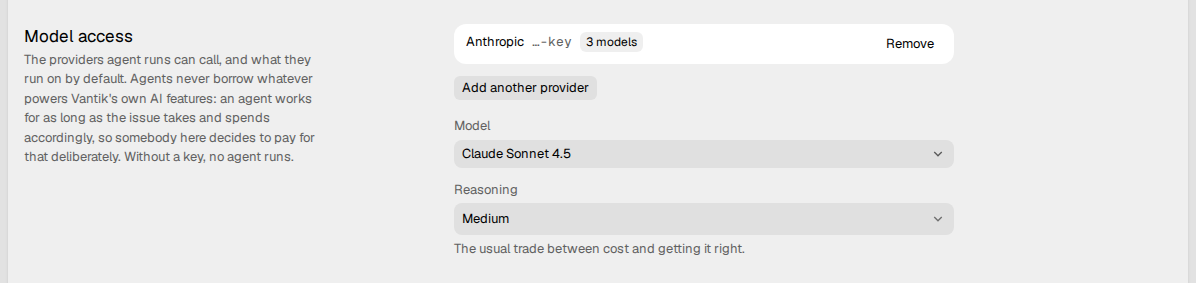
Agent runs use only these keys
An agent run uses only a key from this section, and the model that the person who delegated selected. If the person kept Workspace default, the run uses the model of this section.
An agent run never uses a key from the environment of the server, for example
from the .env file of the deployment. If the workspace has no key here, a
run in the hosted sandbox does not start.
How to add a provider key
- Click Add a provider. If the workspace has a key already, click Add another provider.
- Select the Provider.
- Paste the key in API key.
- If you selected Azure OpenAI, type the endpoint of your deployment in Endpoint. Only Azure OpenAI has this field, and it is required.
- Click Check and save. If the provider has no list of models, the button is Save.
These are the providers: Anthropic, OpenAI, OpenRouter, Vercel AI Gateway, Google Gemini, xAI, Groq, Mistral, DeepSeek, Together AI and Azure OpenAI.
Before Vantik stores the key, it asks the provider for its list of models. If the provider refuses the key, Vantik does not store it. If Vantik cannot reach the provider, Vantik stores the key and tells you so.
The workspace has one key for each provider. The Provider list shows only the providers that have no key.
Each provider row shows the number of models that the key opens, or not checked. To remove a key, click Remove on its row. To change a key, remove it, and then add the provider again.
How Vantik keeps a key
Vantik encrypts each key before it stores it. The server uses the
CREDENTIAL_ENCRYPTION_KEY of the deployment for this. Vantik never shows a
key again after you save it. For a key of 12 characters or more, it shows the
last four characters. For a shorter key, it shows no characters.
The defaults of a run
Below the keys, set the defaults that a run uses when the person who delegated keeps Workspace default:
- Runs use. The provider of the runs. This field shows only when the workspace has keys for more than one provider.
- Model. The model of the runs. Runs do not fall back to a different model. If no model is set, a run with Workspace default fails.
- Reasoning. How much the model reasons before it answers. If you do not set a level, the run uses the default of the model. The field then shows Medium, but the server does not send that level.
How the work is checked
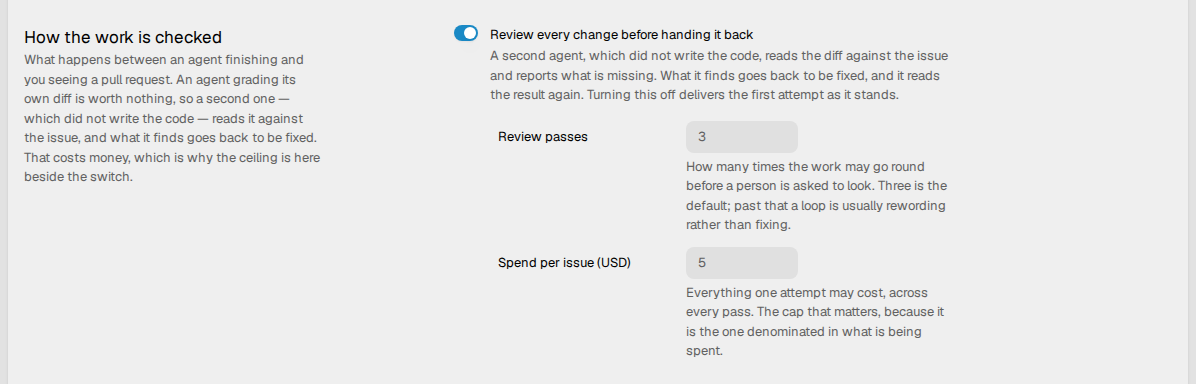
This section controls the review cycle of the workspace:
- Review every change before handing it back. A switch. It is on by default.
- Review passes. The number of passes before a person must look. The default is 3.
- Spend per issue (USD). The maximum cost of one attempt. The default is 5.
Read The review cycle.
Repository access
This section holds one git token. For a GitHub repository, Vantik uses it to push the branch of a run and to open the pull request. Vantik uses the token on the server. The token never goes into the sandbox of a run.
To add the token:
- Click Add.
- Paste the token.
- Click Save.
To change the token, click Replace. To delete it, click Remove.
If no token is set, Vantik uses the token of the GitHub app of the workspace.

How to verify the work
You set the checks that a run must pass on each module, not on this page. Click Go to modules to open the modules.
Does knowledge help?
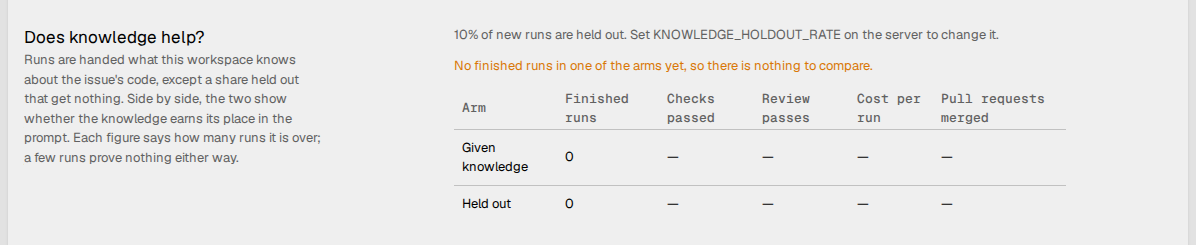
This section compares the runs that got knowledge from the knowledge bank with the runs that did not. Vantik keeps the knowledge from a part of the runs. The table shows two rows: Given knowledge and Held out.
For each row, the table shows the finished runs, the checks that passed, the review passes, the cost of a run, and the pull requests that were merged.
Above the table, the section shows a note about the sample:
- If a row has no finished runs, the note tells you that there is nothing to compare.
- If the smaller row has less than 30 finished runs, the note tells you that a difference can be chance.
The section also shows the part of the runs that Vantik holds out. The operator
of the server sets it with KNOWLEDGE_HOLDOUT_RATE. This page has no control
for it.
Can triage decide alone?
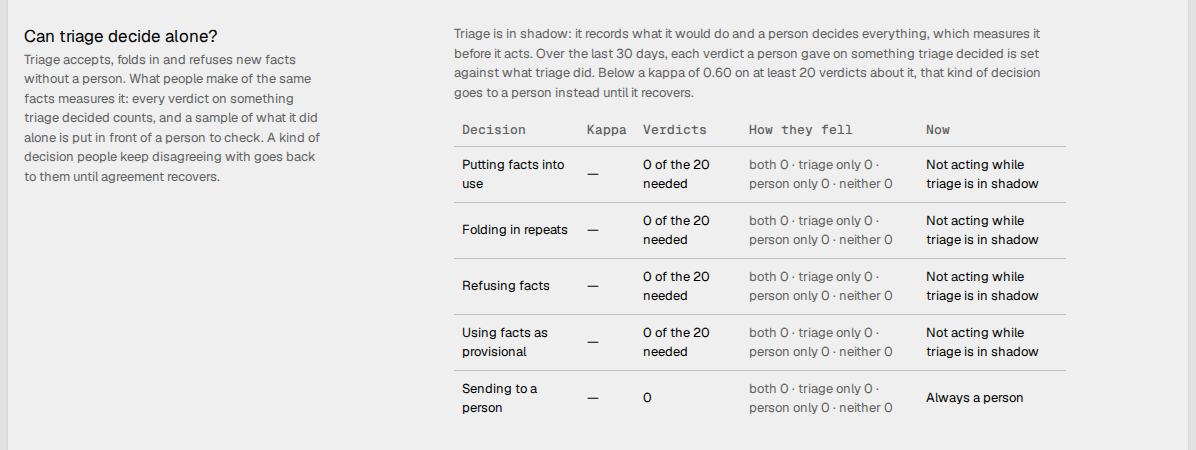
This section shows how often the triage of the knowledge bank agrees with a person. This section is read-only.
The table has one row for each kind of decision. For each row, it shows the agreement (kappa), the number of verdicts, how the verdicts fell, and what triage does now. A row needs a minimum number of verdicts. If a row has that number and its kappa is below the limit, a person makes that decision. This stays so until the agreement recovers. The text above the table gives the limit and the minimum number.
If triage is in shadow, triage records its decision but does not apply it. A person makes each decision. The Now column then shows Not acting while triage is in shadow. A decision to send a fact to a person always shows Always a person.
If triage is off, the section shows only a note, and no table.
Read Knowledge.
Agent accounts
This section lists the agents of the workspace. For each agent, it shows the name, the owner (personal or workspace), the email, and the scopes. For a personal agent, it also shows when the agent last used its token. A workspace agent holds no token, so its row shows holds no token.

You cannot make an agent on this page. A member makes a personal agent in the API settings of their account. Read Account settings.
- To stop a personal agent, click revoke.
- To stop a workspace agent, click disable. A workspace agent holds no token.
A revoked agent shows only after you click Show N revoked. N is the number of revoked agents. Click Clear them to hide the revoked agents from the list. This does not delete them. Their earlier changes still show their names.