Account settings
Overview
The account settings are your own settings. Each member can see and change them. Your profile, passkeys and notification settings apply in each workspace that you are a member of. An access token belongs to the workspace that you made it in. It works only in that workspace.
To open them, open Settings. In the settings sidebar, under My account, click Profile, Security, Preferences, Notifications or API.
Profile
The Profile section holds your Full name and your Username.
- Change the Full name or the Username.
- Click Update.
The full name and the username must each have 2 characters or more. The full name can have a maximum of 50 characters. The username can have a maximum of 10 characters.

Security
The Passkeys section lets you sign in with your device. A passkey replaces the login code that Vantik sends to your email.

How to add a passkey
- Click Add a passkey.
- Follow the steps that your browser or your device shows.
Each passkey shows the date that you added it. You cannot give a passkey a name. You cannot add the same device two times.
If your browser cannot use passkeys, the section tells you so. Then sign in with a login code.
How to remove a passkey
Click remove on the row of the passkey. Vantik does not ask you to confirm.
A passkey is for sign-in only. Vantik has no password. If you have no passkey, you sign in with a login code from your email.
Preferences
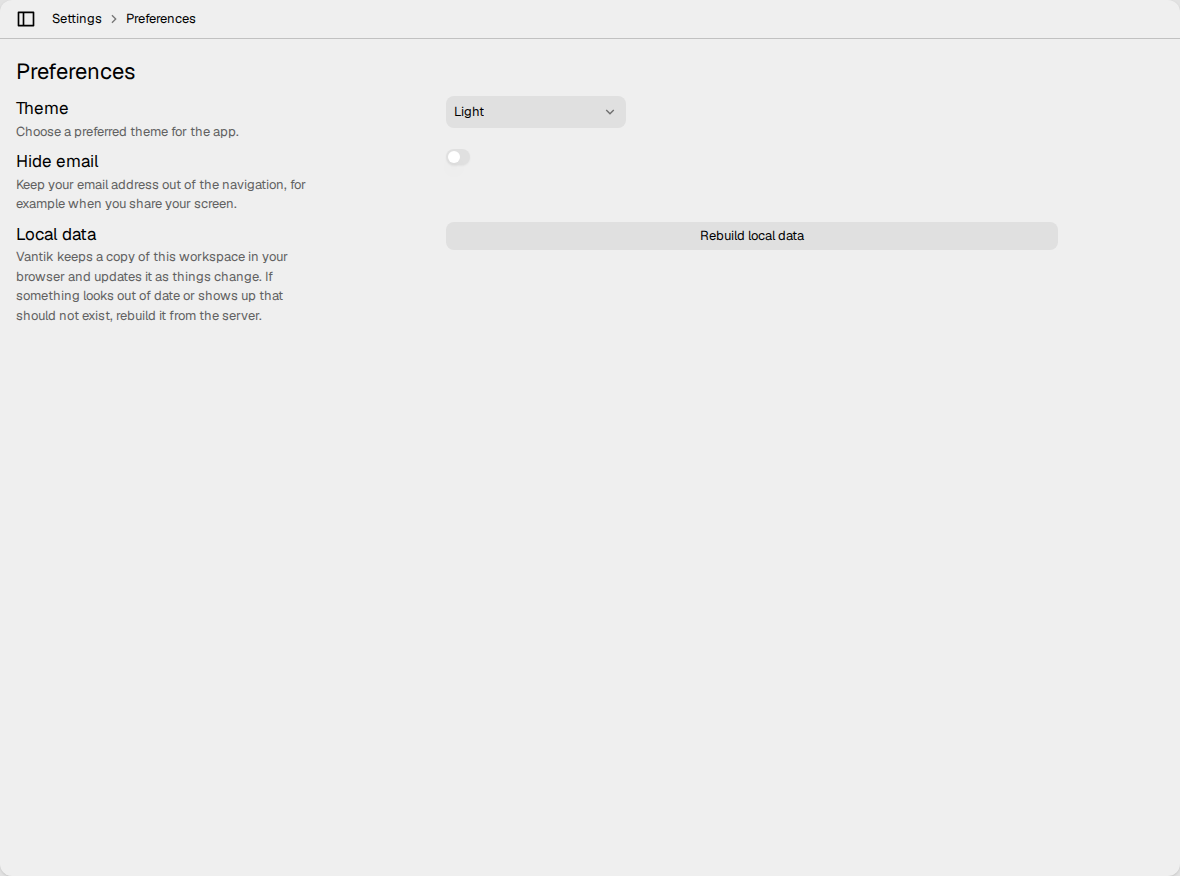
The Preferences page has three sections:
- Theme. Select Light or Dark. Vantik keeps this choice in your browser only. A different browser does not get it.
- Hide email. Turn on the switch to remove your email address from the account menu. Use it when you share your screen.
- Local data. The webapp keeps a copy of your workspace in your browser. Click Rebuild local data to delete that copy and load it again from the server. Use it when the webapp shows data that is not current.
Notifications
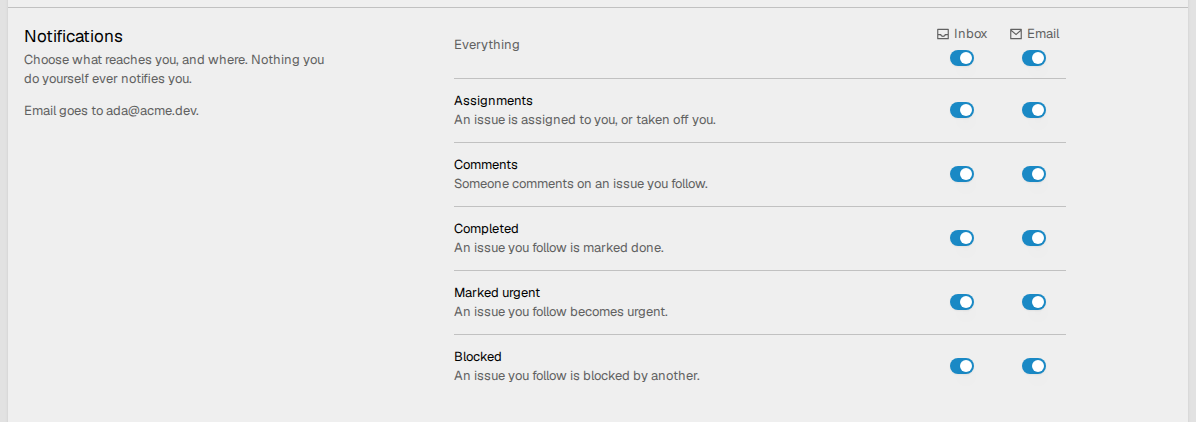
The Notifications section tells Vantik which changes notify you, and where. An action that you do yourself never notifies you. An action of an agent can notify you.
Each row has two switches: Inbox and Email. The section shows the email address that Vantik sends to. These are the rows:
| Row | It notifies you when |
|---|---|
| Everything | This row turns all the other rows on or off for one channel. |
| Assignments | Someone assigns an issue to you, or removes you as the assignee. |
| Comments | Someone comments on an issue that you follow. |
| Completed | An issue that you follow changes to done. |
| Marked urgent | An issue that you follow gets the urgent priority. |
| Blocked | A different issue blocks an issue that you follow. |
All the switches are on by default. Vantik saves a change when you click a switch.
Read Inbox to learn what the inbox shows.
API
The API & Agents page has two sections: Access tokens and Connecting a client.
Access tokens
An access token lets a program use Vantik for you, for example an MCP client or a script. A token acts in one of two ways:
- You. The token acts as you, with your permissions.
- Its own identity — an agent. The token belongs to a new personal agent. The changes of the agent show the name of the agent, not your name. This is the default.
To make a token:
- In Name, type a name for the token.
- In Acts as, select Its own identity — an agent or You.
- If you selected an agent, select the Role: Read only, Read and write or Read, write and delete. The default is Read and write.
- Click Create.
- Copy the token. Vantik shows it one time only.
- Click Done.
Vantik keeps only a hash of the token. It cannot show the token again. If you lose a token, revoke it and make a new one. A token does not expire.
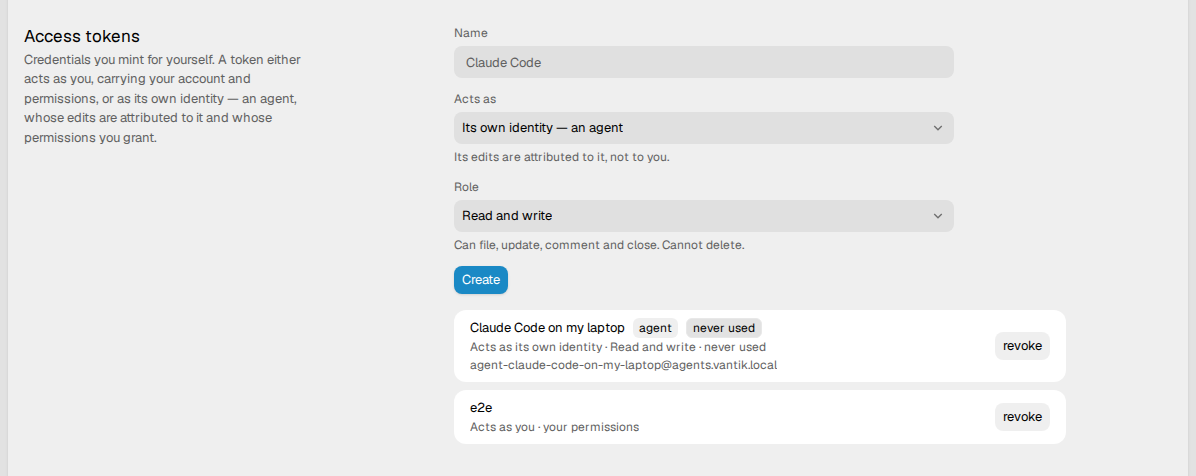
The list shows each token, the identity that it acts as, and its role. A token of an agent also shows when the agent last used it. To stop a token, click revoke on its row. Vantik does not ask you to confirm. When you revoke the token of an agent, Vantik keeps the agent. Its earlier changes still show its name.
Each member can make a personal agent. Read Personal agents and workspace agents.
Connecting a client
This section shows the configuration that connects a client to the MCP server of Vantik. Select the tab of your client: Claude Code, Codex, Cursor or Other. Then click Copy on each block, and paste the block where the section tells you.
If you made a token on this page, the blocks contain that token. If not, they
contain YOUR_VANTIK_TOKEN. Replace it with your token.
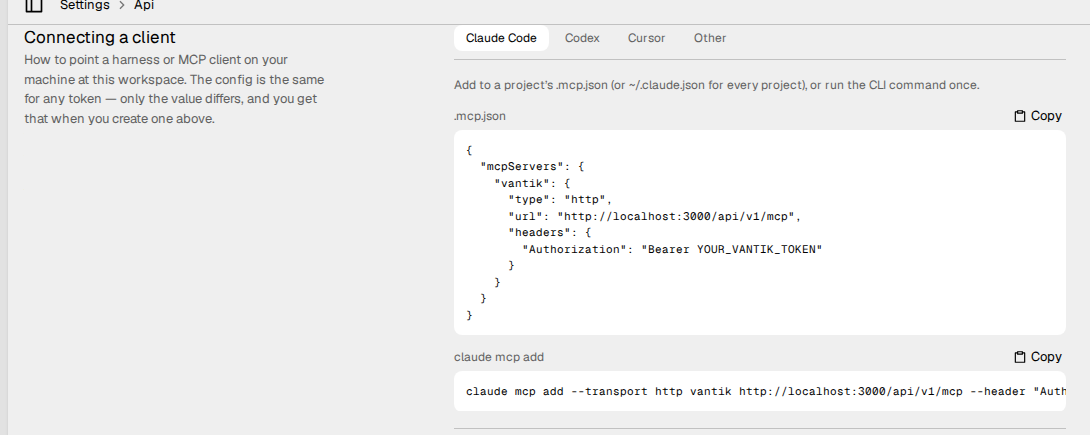
The section also has two optional parts:
- The house style, as agent skills. A command that installs the Vantik
skills for your client, and a guide to add to
CLAUDE.mdorAGENTS.md. - Hooks that keep the tracker current. Hooks that remind the agent to update its issue.
Read How to connect an MCP client for the full steps.