Keyboard shortcuts and the command palette
Overview
Vantik has a small set of keyboard shortcuts. A shortcut does not work while you type in a text field, unless this page says that it does.
On a Mac, use ⌘. On a different computer, use Ctrl where the table shows
it. Some shortcuts work only with ⌘.
Shortcuts on most pages
These shortcuts work on all pages except the Settings pages. In
Settings, only C works.
| Key | Action |
|---|---|
⌘ / or Ctrl / | Open search. Read Search. |
C | Open the new issue dialog. |
⌘ B | Narrow the sidebar to a row of icons, or make it wide again. This shortcut works only with ⌘. |
Shortcuts on the pages of issues
Each of these shortcuts works only on some pages. The Pages column tells where.
| Key | Action | Pages |
|---|---|---|
⌘ K | Open the command palette. This shortcut works only with ⌘. | All the pages in the list below. |
F | Open the filter bar. | The Issues page of a team, the All issues page of the workspace, and the page of a capability. |
S | Change the status. The dialog Change Status... opens. | The Issues page of a team, and the full page of an issue. |
A | Change the assignee. The dialog Change Assignee... opens. | The same pages as S. |
L | Add a label. The dialog Add Label... opens. | The same pages as S. |
P | Change the priority. The dialog Change Priority... opens. | The same pages as S. |
⌘ K works on these pages:
- The Issues page of a team, and the All issues page of the workspace.
- The full page of an issue.
- The Teams page and the Projects page.
- The pages of the agent runs.
- The lists of products, of modules and of capabilities.
- The pages of a product, a module and a capability.
⌘ K, F, S, A, L and P do not work on My issues, on a view, on a
cycle, on the page of a project, or in the inbox.
Keys in an open filter bar
These keys work on each page that has an open filter bar. This includes My issues, a view, a cycle and the page of a project.
Fputs the cursor in the filter field.Esctakes the cursor out of the filter field. The filter bar stays open.
S, A, L and P change one of these issues:
- The issues that you select. To select an issue in the list, put the pointer on its row, and click its checkbox.
- The last issue that the pointer was on. This applies only when you select no issue.
- On the full page of an issue, that issue.
If no issue agrees, these keys do nothing.
The Change Status... dialog does not check the Definition of Done. It completes an issue without the Definition of Done not met dialog.
Other keys
| Key | Where | Action |
|---|---|---|
Esc | The issue at the side of the list | Close the issue. The tooltip of the close button is Close view (Esc). |
Esc | The full page of an issue | Go back to the previous page. |
⌘ and click | A row in a list | Open the full page of the issue. |
⌘ Enter or Ctrl Enter | The new issue dialog | Create the issue. This works in a text field. |
⌘ Enter or Ctrl Enter | The new project dialog | Create the project. |
⌘ Enter or Ctrl Enter | The Delegate to an agent popover of an issue | Start the agent run. |
⌘ Enter or Ctrl Enter | A comment in Needs you | Send the comment. |
Enter | A text field in a list or on a page, for example a new criterion | Save the text. |
Esc | The same text field | Cancel. |
↑ and ↓ | The list of people after @ in a comment | Move through the list. |
Enter | The same list | Select the person. |
Esc | The same list | Close the list. |
The lists of issues have no keys to move from one row to the next row. Vantik has no help dialog for the shortcuts.
The command palette
Press ⌘ K on a page of issues to open the command palette. Type in Search
command... to find a command.
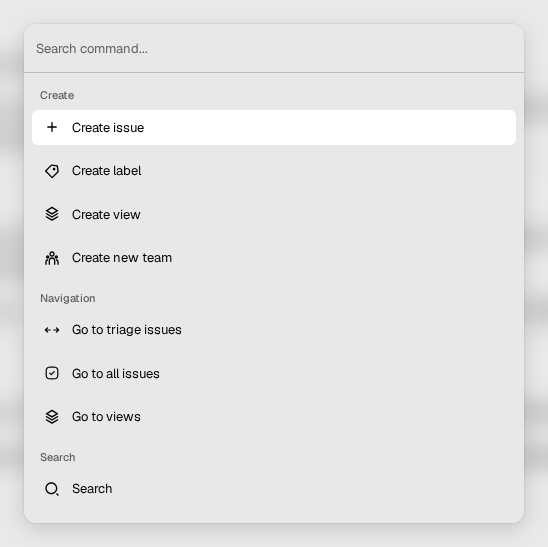
These commands work:
| Command | Action |
|---|---|
| Create label | Open the Labels settings of the workspace. |
| Create view | Open the Issues page of the team. Add filters there, and click Save as view. |
| Go to all issues | Open the Issues page of the team. |
| Go to views | Open the Views page of the team. |
| Search | Open search. |
Create view, Go to all issues and Go to views need a team. Use them on a page of a team.
The palette also shows Create issue, Create new team and Go to triage issues. These commands do nothing, or they open a page that does not exist. Use these methods instead:
- To create an issue, press
C. - To create a team, click Create Team on the Teams page.
- To see the issues in triage, open the Issues page of the team. Read Triage.
The palette has no commands for an issue. Use S, A, L and P.