Products, modules and capabilities
Overview
Teams answer the question "who does the work". The product axis answers two different questions: "where is the code" and "what does the software do". It has three records:
- A product is a thing that you ship to customers. A product holds no code and no issues. It groups modules.
- A module is where the code is. Usually a module is one repository. It can also be one path in a repository, or one service.
- A capability is what the software does, for example "Checkout". The modules that hold its code give a capability its identity.
An issue names the modules that its work changes, and one capability or none.
How the product axis relates to teams
A team keeps three jobs. A team is the boundary of what a person can see. A
team holds the cycles. A team gives the issue keys, for example ENG-42. The
product axis does not change these jobs. An issue always belongs to one team.
Ownership and links
Each module has exactly one owner:
- A product owns a module that goes to customers.
- A team owns a module that holds internal tools.
The owner is the product or the team that keeps the responsibility for the module if all other things change.
A module can also have links to other teams and products. A link shows that a team or a product works with the module. A link gives no authority. A link does not change who can see the issues of the module.
Capabilities
A capability usually needs code in more than one module. So a capability has a list of modules, and no product. To find the products of a capability, look at the owners of its modules. A capability with no modules is a capability that nobody built yet.
A capability has a status. The status is free text. The usual values are planned, active, live and deprecated. A new capability is planned. The webapp shows the status. It has no control that sets a status, but Archive sets archived, and Restore sets planned.
Where the product axis shows in the webapp
The sidebar shows Products next to Teams at the top. Below it, the Products group shows each product. Click a product to show its modules. Each team in Your teams also shows the modules that the team owns.
Each member of the workspace can make, change, archive and delete products, modules and capabilities.
The page of a product
The page of a product shows its name, its description, its modules, and its knowledge. A module that the product only links to shows as linked.
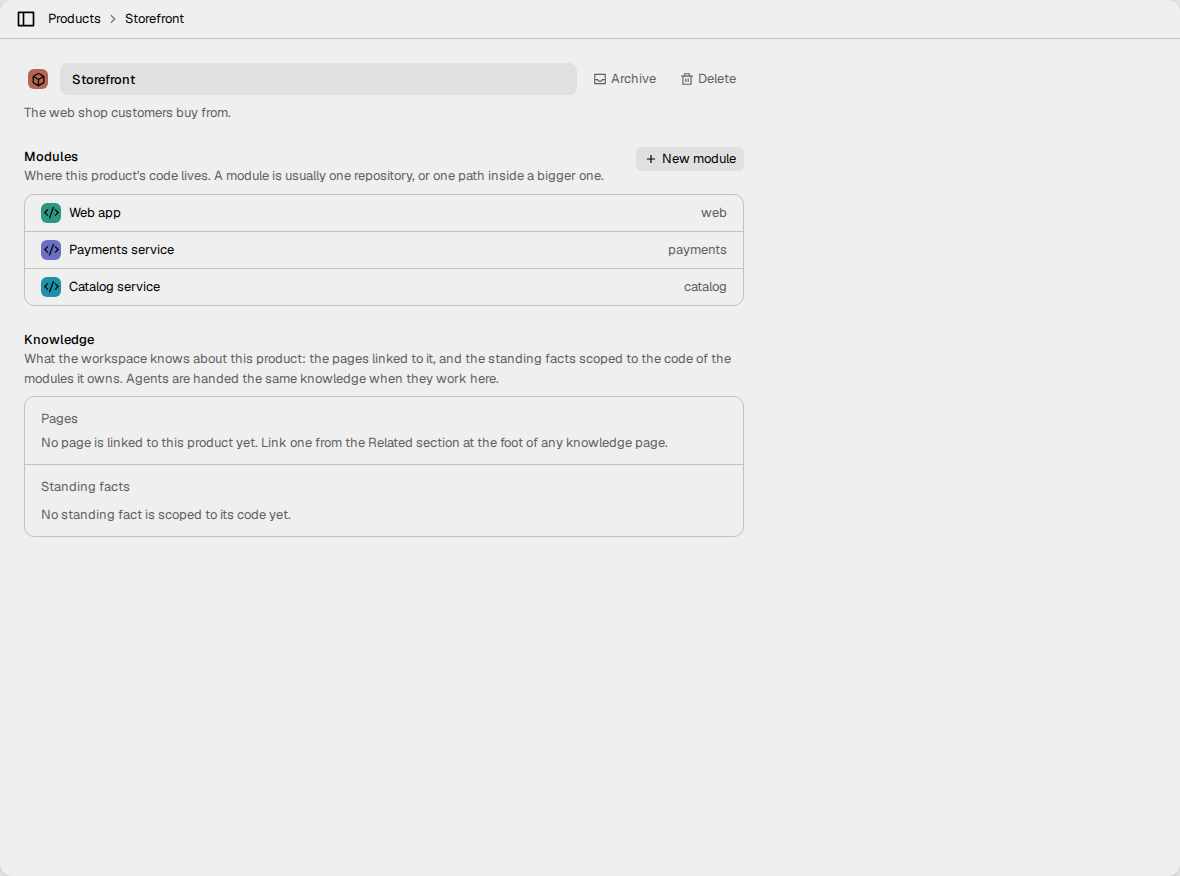
To make a product:
- In the sidebar, click + next to Products.
- Type the Product name.
- Optional: type a Description and a Product identifier. The identifier is in the address of the product. If you leave it empty, Vantik makes it from the name.
- Click Create.
To make a module of the product, click New module on the page of the product. Type the name of the module, and click Create.
You cannot delete a product that owns modules. First give each module a different owner.
The page of a module
The page of a module has these sections:
- Owner. The product or the team that owns the module.
- Linked to. The teams and products that work with the module. Click Add link to add one.
- Repositories. The repositories, or the paths in them, that hold the code of the module. Read How to link a module to a repository.
- How to verify the work. The commands that an agent run uses to check its work. Read How to verify the work.
- Capabilities. The capabilities that the module helps to do. Click Add a capability to add one, or to make a new one.
- Knowledge. The pages that people linked to the module, and the standing facts about its code.
At the bottom, a link shows the number of issues that touch the module. Click it to see those issues.
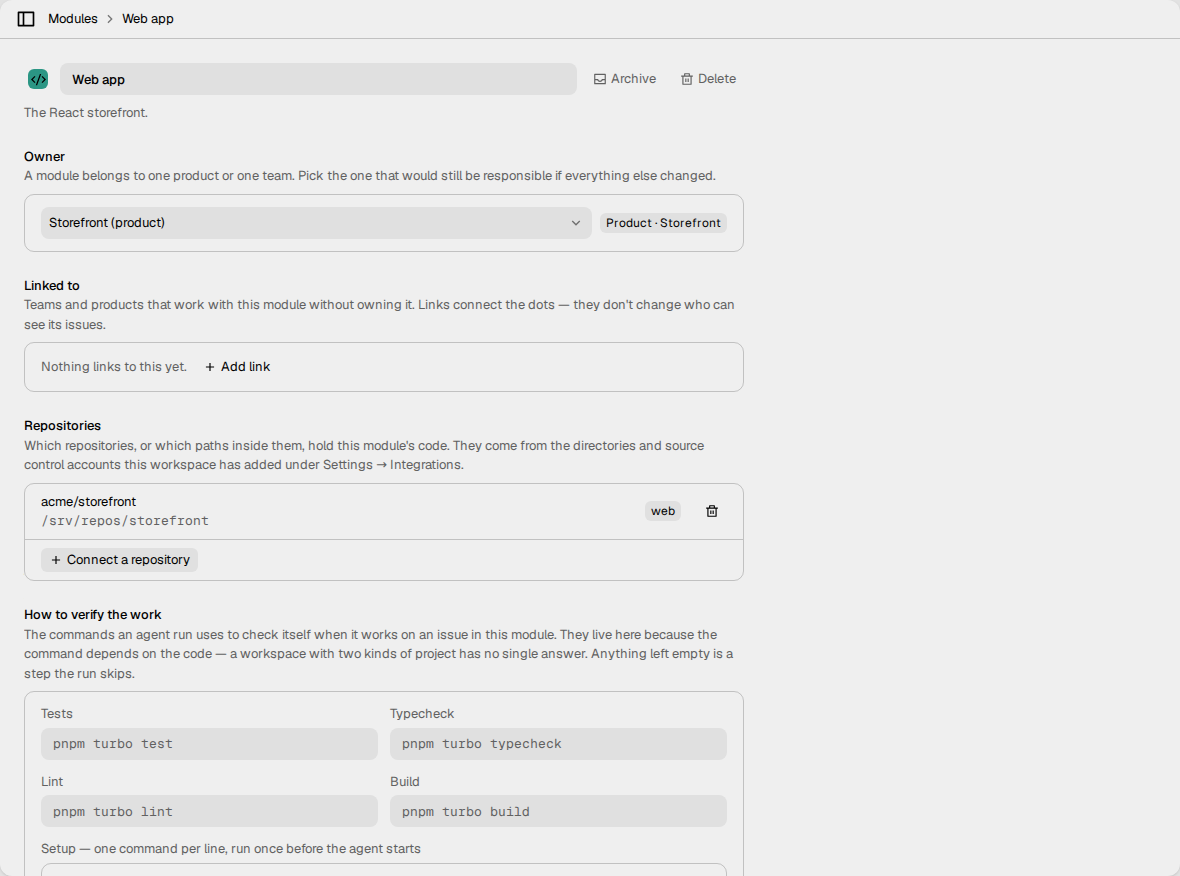
When you delete a module, Vantik removes the module from each issue and each capability. The issues stay. Vantik also disconnects the repositories of the module.
The page of a capability
To open a capability, click it in the Capabilities section of a module. The page of a capability shows its status, the modules that it lives in, its knowledge, and the issues of the capability. To change its modules, use the module control at the right.
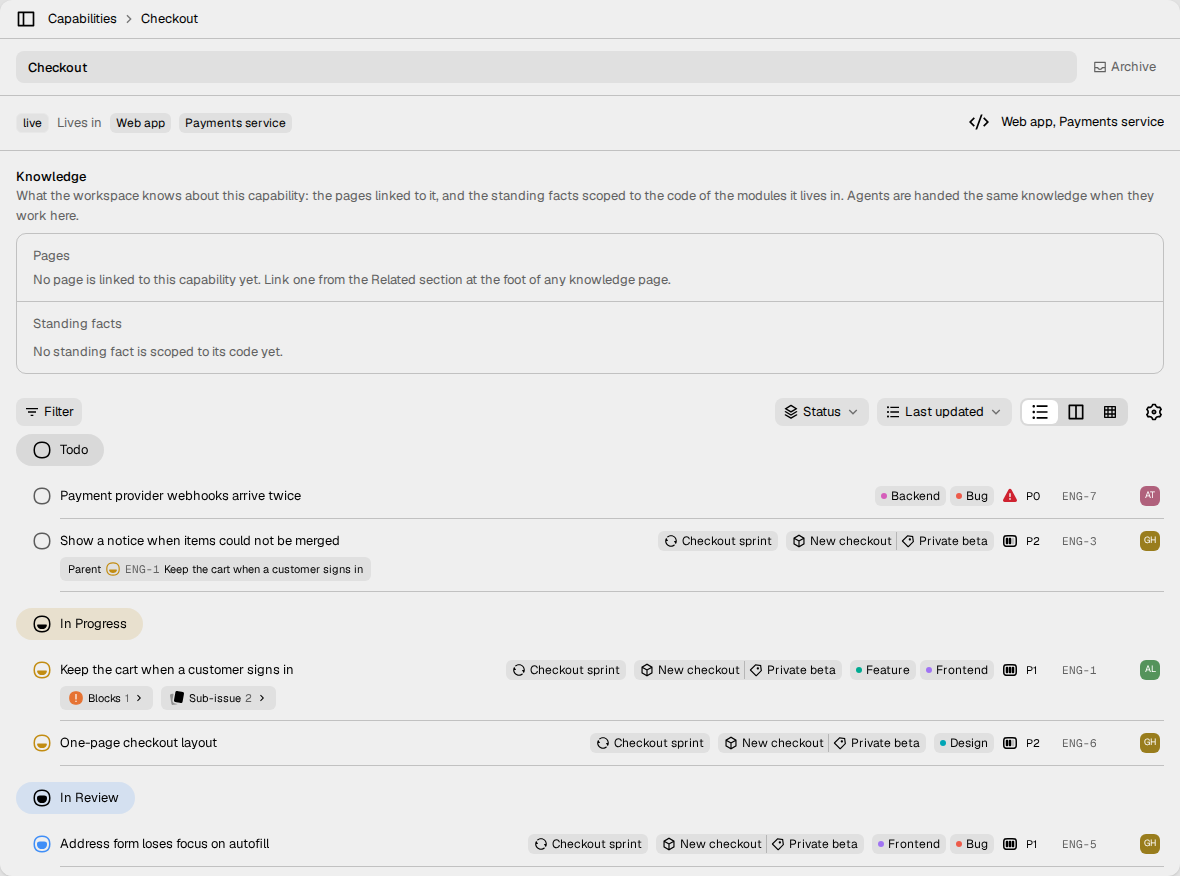
To delete a capability, click Capabilities at the top of the page of a capability. This opens the list of capabilities. Then click the delete button on the row of the capability. Vantik removes the capability from each issue and each project.
Archive
To archive a product, a module or a capability, click Archive on its page. An archived record goes out of the sidebar and out of every picker. Its issues and its history stay. To undo, click Restore. Restore sets the status to the status of a new record.
How the modules get onto an issue
Three things set the modules of an issue. From the least sure to the most sure, they are a suggestion, a pull request, and a person.
1. A suggestion
When an issue is in triage and has no modules, Vantik can suggest modules. An LLM reads the description of the issue and the names and descriptions of the modules. The operator of the server must configure the system LLM. Read Self-deployment.
A suggestion never goes onto the issue by itself. It shows under Modules as Suggested:
- Click the check mark to accept the module. Vantik adds it to the issue.
- Click x to dismiss the module. Vantik does not suggest it again for this issue.

When the issue goes out of triage, Vantik deletes the suggestions.
2. A pull request
When a pull request names an issue, Vantik reads the files that the pull request changes. Vantik then adds each module that holds one of those files to the issue.
- The pull request names the issue by its key, for example
ENG-42. The key can be in the title, the description or the branch name. - A file belongs to a module if a person linked the module to its repository. The path of the file must also start with one of the paths of the module. A module with no paths gets each file of the repository.
- This works for GitHub repositories only.
A pull request only adds modules. It never removes a module from the issue.
3. A person
To set the modules yourself, open the issue. Under Modules, select one or more modules. The field shows only when the workspace has modules.
A pull request never removes a module that a person set, because a pull request only adds modules. But if a person removes a module, a later event of the same pull request can add it again.
If the workspace has capabilities, the Capability field shows under the modules. An issue has one capability or none.
How to link a module to a repository
A module gets its repositories from the sources that the workspace connected in Settings → Integrations. A source is a directory on the server, a git host, or the GitHub integration. Connect the source first. Read Integrations.
- Open the page of the module.
- Under Repositories, click Connect a repository.
- Select the repository.
At first, the module gets the whole repository. The badge on the row of the repository shows whole repository. If the module is only a part of the repository, click the badge. Then select the folders that hold the code of the module, and click Save.
To disconnect a repository, click the delete button on its row.
Why a module needs a repository
These parts of Vantik read the code through the repositories of a module:
- Agent runs. A run gets its repository from the modules of its issue. If the modules of the issue use more than one repository, or none, the run fails. Read Delegating an issue.
- The knowledge verifier. It reads the code to check the facts of the knowledge bank. Read Knowledge.
- Pull requests. A pull request adds a module to an issue only through the repositories of the module.
A repository that has no connected source
Each linked repository needs the source that offers it. If a person disconnects that source, or if the source stops to offer the repository, the row of the repository stays on the module page. But Vantik cannot use it:
- The row shows the name of the repository, without a path or a URL.
- If you open the folders of the row, Vantik shows "The server could not read this repository, so its folders are unknown. Type a path below."
- An agent run on an issue of the module fails, because the run has no repository.
- The knowledge verifier does not read this repository.
To fix it, connect the source again in Settings → Integrations. Then disconnect the repository from the module, and connect it again.
How to verify the work
The How to verify the work section of a module holds the commands that an agent run uses to check its work: Tests, Typecheck, Lint and Build. It also holds the Setup commands, one for each line, and the hosts that the setup can reach. A run skips each empty field. Click Save to save the commands.
If an issue has more than one module, and two modules give different values for a command, the run does not use that command. The run uses the setup commands and the hosts of all the modules.
Filter and group issues
In an issue list, click Filter. The filters Product, Module and Capability are in their own group, below the filters of the issue fields.
- Product shows the issues that touch a module that the product owns or links to. An issue does not name a product itself.
- Module shows the issues that name one of the selected modules.
- Capability shows the issues of the selected capability.
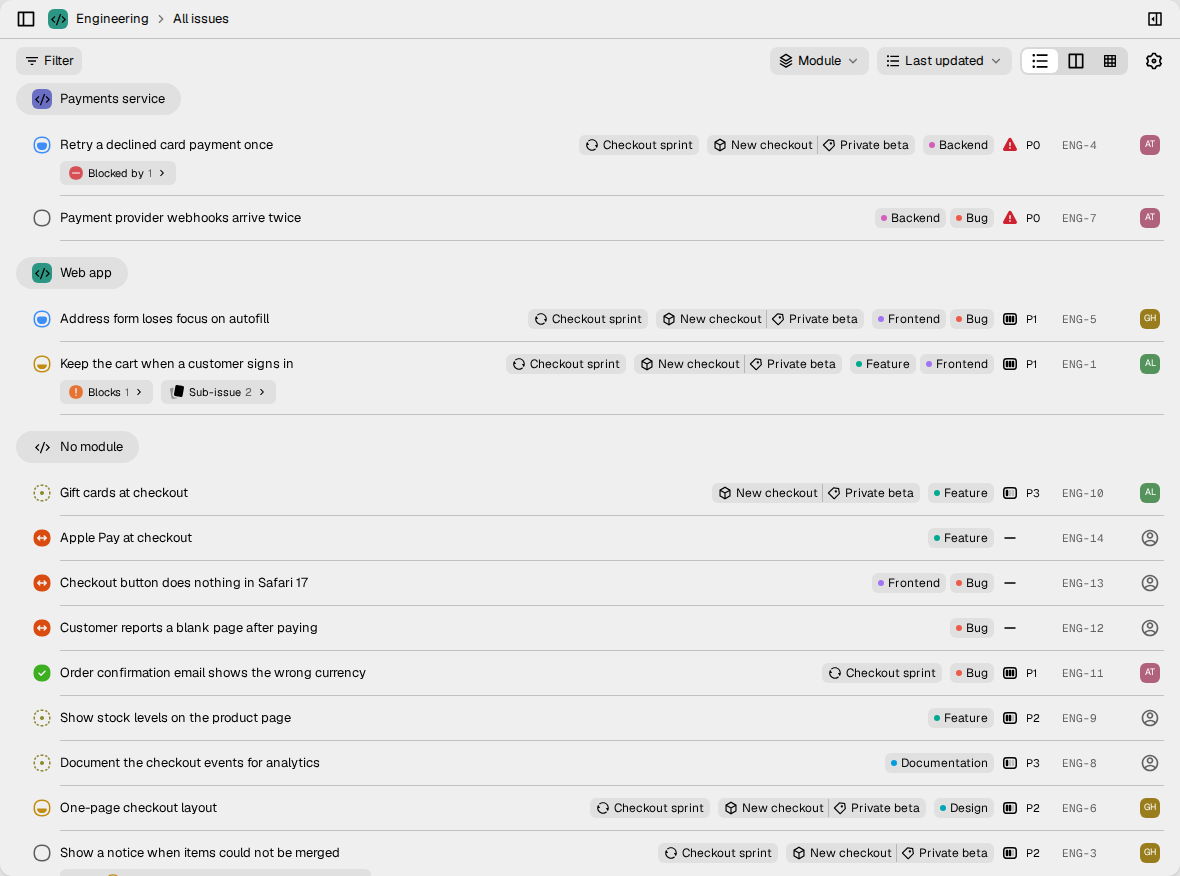
To group the list, open the control that shows Status, and select Module or Capability. An issue with two modules shows in the group of each module. Issues without a module show under No module. You cannot group by product.
For agents
An agent that works in a checkout can find its module. The MCP tool
list_modules returns each module with its repositories and their paths. The
agent compares its checkout with these repositories and paths. The module with
the same repository and path is the module of the work.
The MCP tool get_task returns the modules and the capability of an issue.
list_tasks can filter by module, capability and product. search_tasks can
filter by module and capability.