My issues and All issues
Overview
Two pages show the issues of more than one team:
- My issues shows the issues that are assigned to you.
- All issues shows all the issues of your teams.
The Issues page of a team shows only the issues of that team. Read Issues.
My issues
Click My issues in the sidebar.
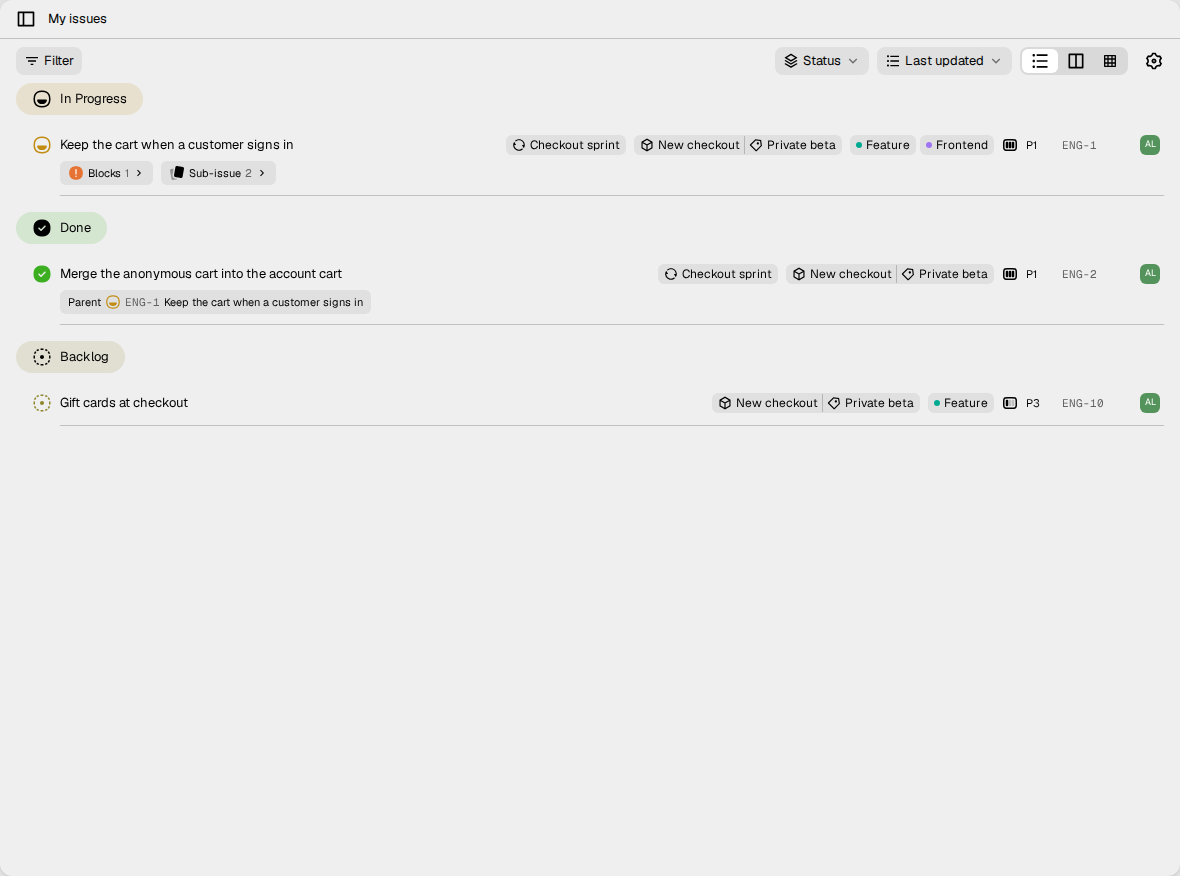
The page shows the issues that are assigned to you, in all your teams. It has no tabs.
If you add an Assignee filter, the filter replaces this rule. The page then shows the issues of the assignees that you select. Remove the filter to see your issues again.
All issues
The All issues page of the workspace shows each issue in your teams. The sidebar has no link to it. Use one of these methods to open it:
- Go to
/<workspace>/allin the browser. Replace<workspace>with the slug of your workspace. - On the page of a module, click the link that tells how many issues touch the module. The page opens with a Module filter for that module.
The controls of these pages
Both pages have the same controls as the Issues page of a team:
- Filter. Read Views.
- The layout, Group by, Order by and Display options. Read How to group, order and show the issues.
- Save as view, when the page has filters. A view that you save from these pages belongs to the workspace.
On All issues, ⌘ K and F work. S, A, L and P do not work
there, because the page has no team. On My issues, only the keys of an open
filter bar work. Read Keyboard shortcuts.