Inbox and notifications
Overview
The inbox shows the issues that need your attention. Click Inbox in the sidebar to open it. The badge on Inbox shows the number of issues with an unread notification.
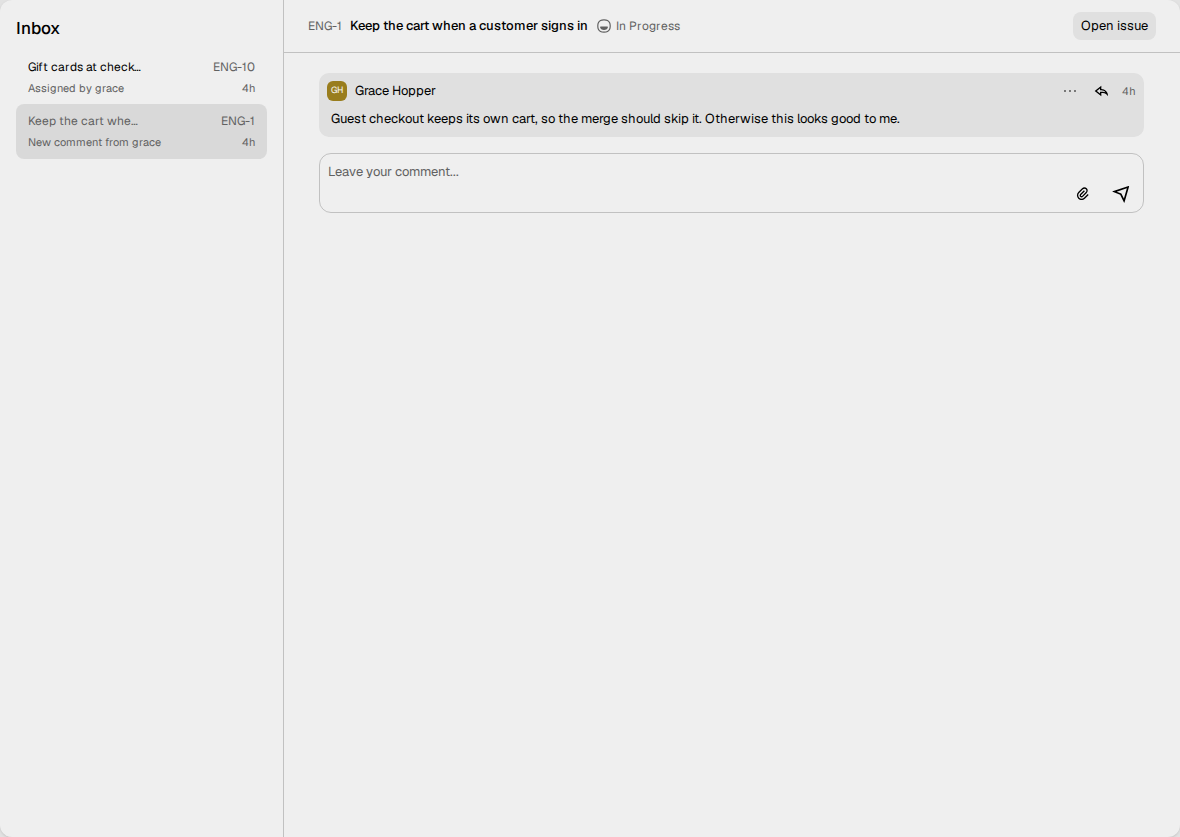
The inbox shows one row for each issue, the newest first. Each row shows:
- The title and the key of the issue. The title of an unread row is darker.
- What happened, and who did it. For example: "Assigned by grace" or "New comment from grace".
- "+N more" if the issue has more notifications.
- The time of the last change to the issue.
How to read a notification
- Click a row. Vantik marks all the notifications of that issue as read.
- Read the updates at the right. The oldest update is first.
- To reply to a comment, type in the comment box at the bottom.
- To open the full issue, click Open issue.
A comment shows in full. A different update shows as one line, for example "moved this to Done" or "set the priority to Urgent".
You cannot mark a row as unread, delete it, or snooze it.
What sends a notification
Vantik sends a notification only for these events:
| Event | Who gets it |
|---|---|
| A person assigns the issue to you. | You. |
| A person takes the issue off you. | You. |
| A person comments on the issue. | The subscribers of the issue. |
| A person moves the issue to a completed status. | The subscribers of the issue. |
| A person sets the priority of the issue to Urgent. | The subscribers of the issue. |
| A person adds a Blocks or a Blocked by relation to the issue. | The subscribers of the issue. |
Vantik does not send a notification for a change that you make yourself. It does not send one for other changes, for example a new label or a change to a status that is not completed.
One change to an issue can do more than one of these things. Then Vantik sends only one of these notifications:
- If the change assigns the issue to a person, the assignment notification.
- Else, if the change sets a status, the status notification. This applies only if the status is completed.
- Else, the priority notification.
A change of status thus stops the priority notification, also when the new status is not completed. When the issue gets a different assignee, the old assignee also gets a notification. The old assignee gets none if that person made the change.
If you already have a notification for an issue, a change of status or of priority does not add a second notification.
When a person deletes an issue, Vantik removes its notifications.
Subscriptions
The subscribers of an issue get the notifications of that issue. Vantik subscribes these people automatically:
- The person who creates the issue, and its assignee.
- Each person who changes the issue, and each new assignee.
- Each person who comments on the issue.
- Each person that a comment mentions with
@.
To subscribe or unsubscribe by hand, open the issue. Next to the Comments and Activity tabs, click Subscribe or Unsubscribe. The avatars next to the button show the subscribers.
When you change an issue again, Vantik subscribes you again.
Notification settings
You choose which notifications you get, and where you get them.
- Open Settings.
- Under My account, click Notifications.
- For each type of notification, turn on or turn off Inbox and Email.
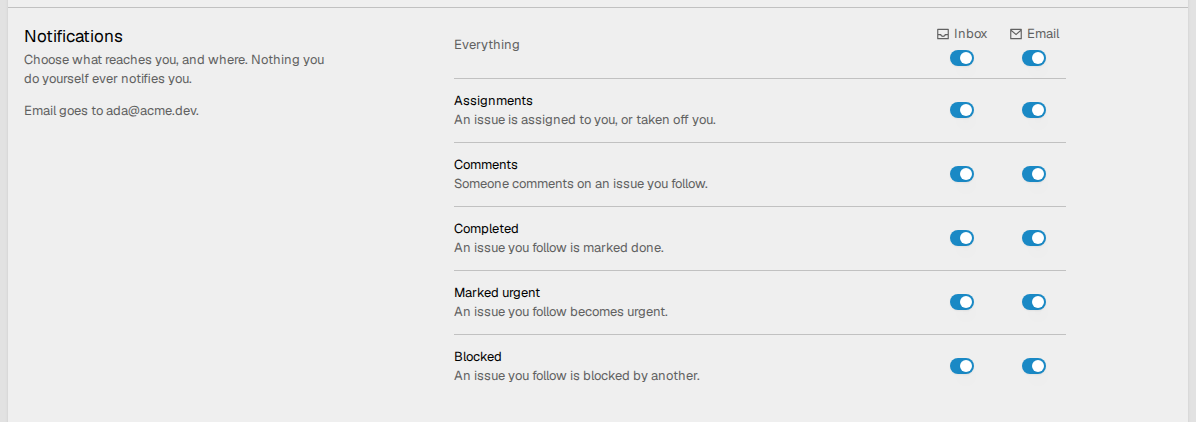
The types are Assignments, Comments, Completed, Marked urgent and Blocked. The Everything row changes all the types at the same time. All the types are on by default. Vantik saves each change immediately.
Vantik sends email through the SMTP server of your instance. If your instance has no SMTP server, Vantik sends no email, but the inbox still works.
The inbox and Needs you
The inbox and Needs you are two different lists.
- The inbox is personal. It shows the notifications about issues.
- Needs you is for all members of the workspace. It shows the decisions about the knowledge bank that wait for a person. To open it, click Pages in the sidebar, and then click Needs you. The badge on Pages shows the number of open items.
Read Needs you.