Delegate an issue to an agent
Overview
You can give an issue to an agent. The agent works on the issue in a Vantik sandbox, in an agent run. When the run ends, the agent gives back a branch or a pull request, and a comment on the issue that tells what it did.
Only a person can start an agent run, from the issue in Vantik. An agent cannot start a run. When you assign an issue to an agent, Vantik does not start a run.
Vantik itself can start a new attempt of a run that a person started. If the runner of a run stops and does not report back, Vantik retries that run. By default, Vantik does not retry the third attempt.
Before you start
These items must be ready before a run can do work:
- A model key. A workspace admin adds a key for a model provider in Settings → Agents, under Model access. Without a key, the delegate control tells you to add one.
- A model. Select a model when you delegate, or set the default model of the workspace. A workspace admin sets the default in Model access, in Model. If the workspace has keys for more than one provider, the admin also selects the provider in Runs use. If the run has no model, it fails when it starts.
- A repository. The run gets its repository from the modules of the issue. Open the page of the module, and click Connect a repository under Repositories. Then add the module to the issue. If the issue has no module with a repository, the run fails.
- A sandbox host. The operator of your instance runs the sandbox host process. If the server cannot reach it, the delegate control shows the reason, and you cannot start a run. Read Optional compose profiles.
- A clear issue. The description must say what the problem is and what done looks like. Vantik refuses an issue with a description of less than 40 characters.
How to delegate an issue
- Open the issue.
- At the right, below the status, the priority and the assignee, click Delegate to an agent.
- Optional: in Anything the issue does not already say, type guidance that the issue does not give.
- Select the Provider. The list shows the providers that the workspace has a key for.
- Select the Model, or keep Workspace default. Workspace default uses the model that Model access sets.
- Optional: select the Reasoning effort. The page of the run shows this value as Thinking.
- Click Start run, or press
⌘ Enter.
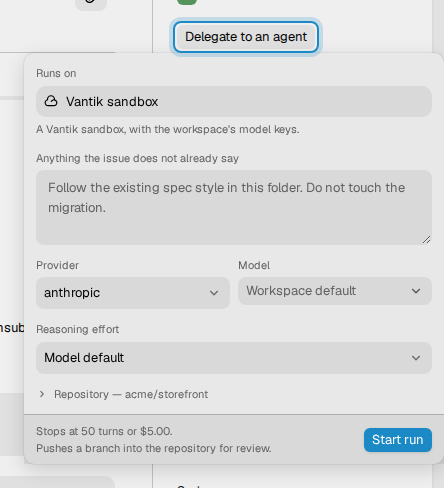
Where it runs shows the repository and the base branch of the run. Click it to see more. The footer tells what the run gives back: a pull request, or a branch. The footer always shows the default limits, "Stops at 50 turns or $5.00". The run uses the Spend per issue of the workspace. Read The budget.
When the run starts, the popover closes. The Delegate to an agent button does not show while a run is live. The issue shows an Agent row with the status of the run, and a card in its activity.
The run does not change the assignee or the status of the issue.
Choose where the run happens
The popover has a Runs on field. It offers two places:
| Runner | What it is |
|---|---|
| Vantik sandbox | A Vantik sandbox, with the model keys of the workspace. The run gives back a branch or a pull request, and the review cycle checks the work. |
| Your machine (omp) | Your own omp, with your own model logins, in a git worktree on your computer. The run gives back a local branch. |
Your machine (omp) shows only while vantik connect runs on your
computer. A run on your machine does not need the model key or the sandbox
host from Before you start. Read
Run an agent on your machine.
When you cannot start a run
The popover shows a message in place of the fields when:
- The description of the issue is too short.
- The workspace has no model key.
- The server cannot reach a sandbox host.
A workspace can have a maximum number of live runs. The default is 5. If the workspace has that number, the popover shows an error when you click Start run.
Questions from an agent
An agent can stop and ask a person a question when it is blocked on a decision that the issue does not give. This works for a run in the sandbox and for a run on your machine.
The question goes to Needs you, with the label Agent question. It is assigned to the person who delegated the issue, and that person gets a notification. The page of the run shows the form above the activity. Anyone in the workspace can answer, and the first answer wins.
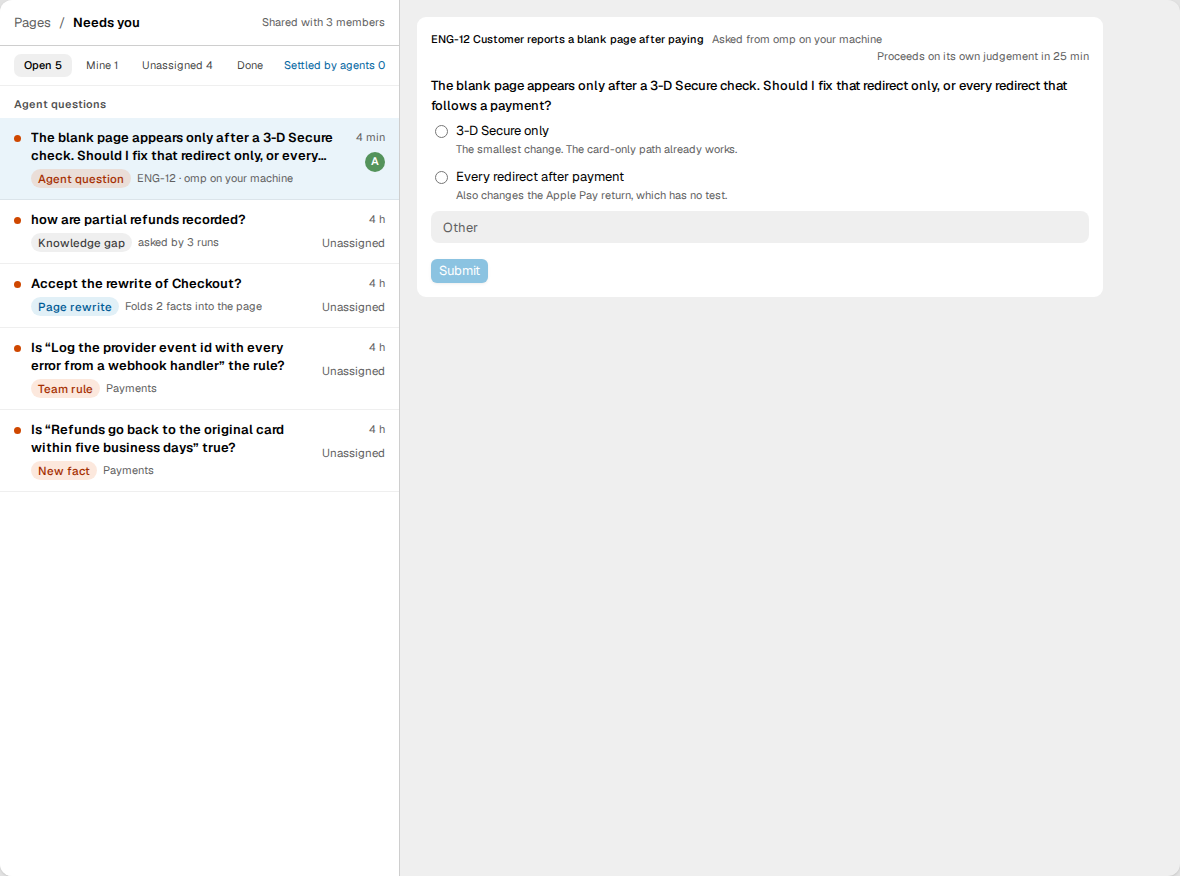
An agent waits 30 minutes for an answer. After that, the question expires, and the agent goes on with its own judgement. It states what it assumed in its comment on the issue. The page shows how long is left, as "Proceeds on its own judgement in …". A run can ask a maximum of 5 questions.
The list of runs
Click Agents in the sidebar to see all agent runs of the workspace.
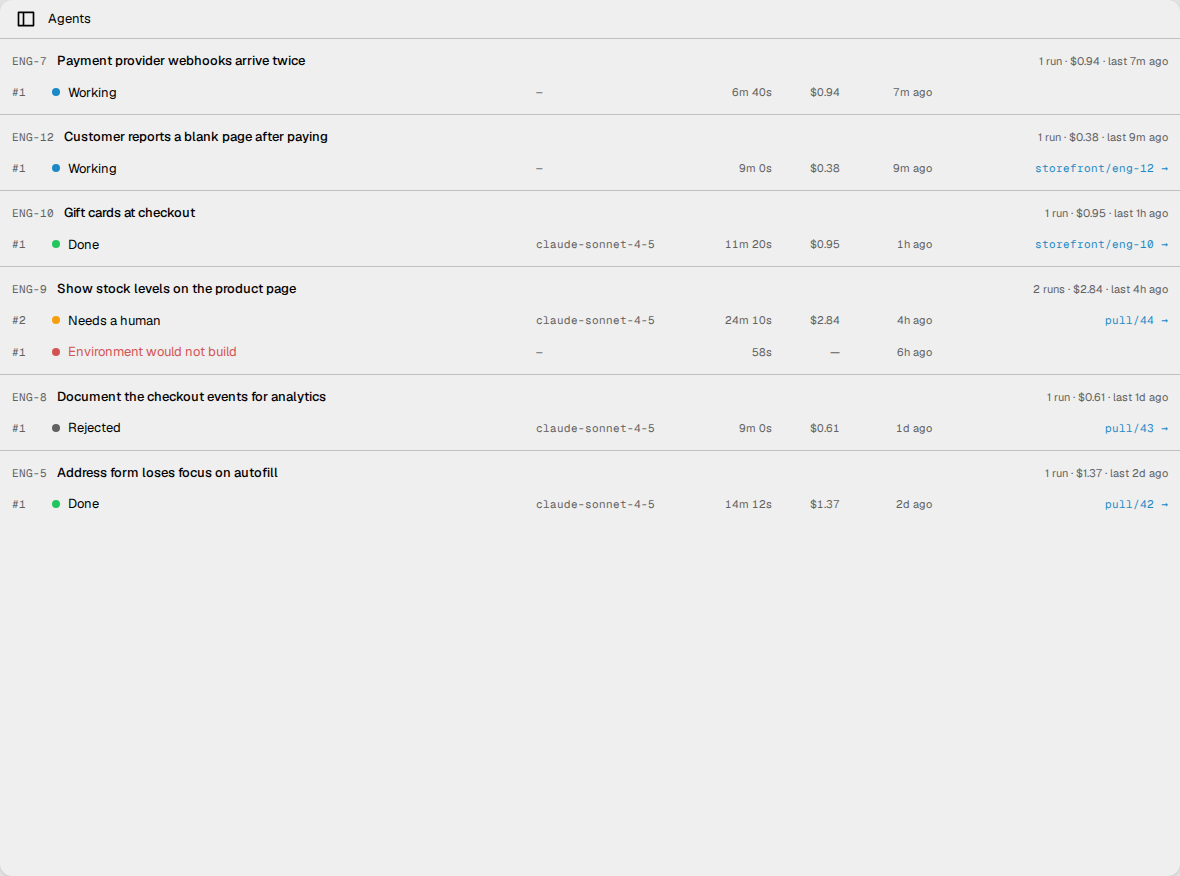
The page groups the runs by issue. The issue with the newest run is first. The heading of each group shows the number of runs, their total cost, and the time of the last run.
Each row shows one run:
- The number of the run on its issue, for example
#1. The first run on the issue is#1. - The status. A run that failed shows the reason in red, for example Environment would not build.
- The model, the time that the run took, and the cost.
- When the run started.
- A link to the pull request or the branch, if the run made one.
Click a row to open the page of the run.
The page of a run
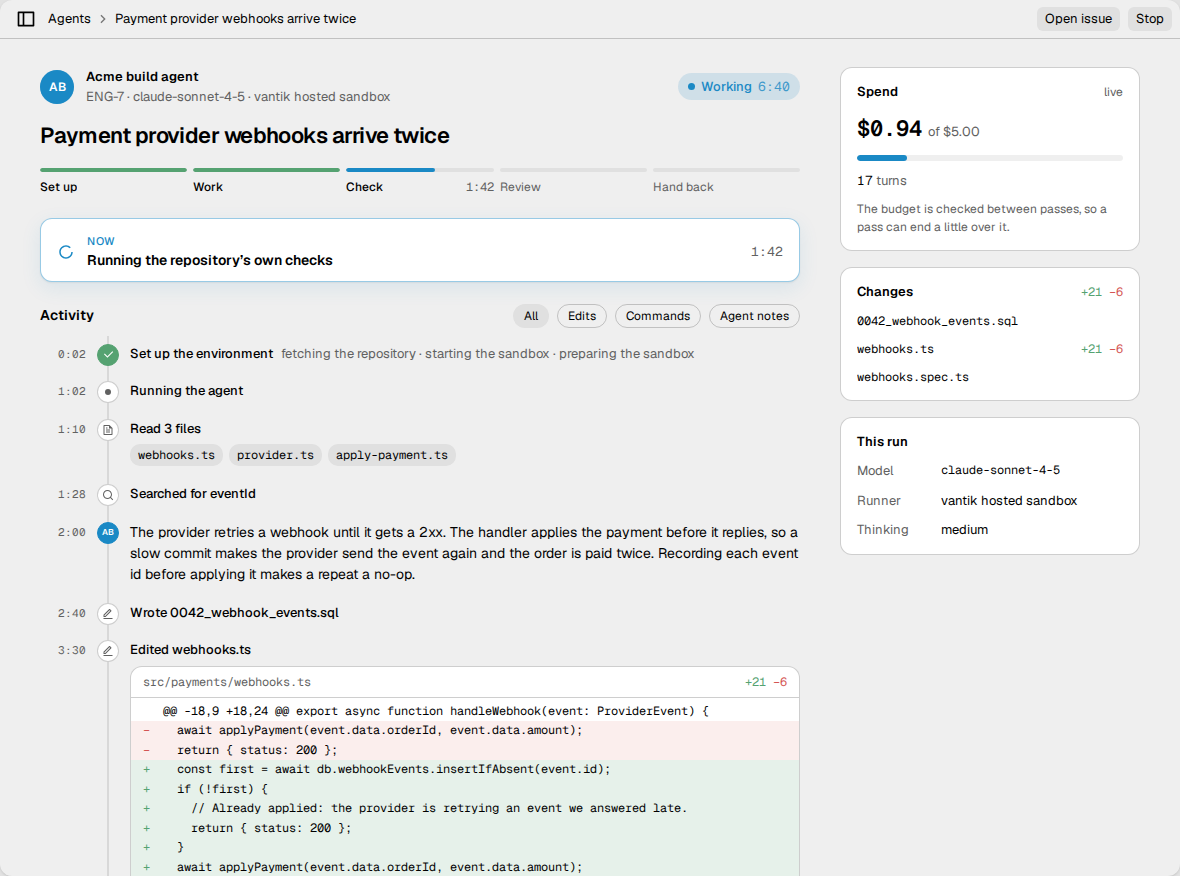
The page of a run has these parts:
- The header. The agent, the key of the issue, the model and the runner. The status and the time of the run show at the right.
- The stepper. The five stages of the run: Set up, Work, Check, Review and Hand back. A green stage is done. A blue stage is in progress. A red stage failed. A stage that the run did not need shows skipped. The time of a stage adds all the passes of the review cycle.
- Now. While the run is live, this card shows the step that the agent does now, for example Running the tests.
- The outcome. When the run ends, this card shows the result. Read The outcome.
- Activity. The events of the run, in order. Each event shows the time from the start of the run.
- Spend. The cost of the run, the budget, and the number of turns and passes. Read Spend.
- Definition of Done. The criteria of the issue, if it has criteria.
- Changes. The files that the run changed.
- This run. The model, the runner, the reasoning effort (Thinking) and the branch. If the run has a trace, the card also shows the Trace.
The page updates while the run is live.
Activity
Use the filters All, Edits, Commands and Agent notes to show one kind of event. These are the kinds of events:
| Event | What it shows |
|---|---|
| Set up the environment | The steps that prepare the run: Fetching the repository, Starting the sandbox and Preparing the sandbox. |
| Read | The files that the agent read. |
| Edited or Wrote | A file that the agent changed, with the diff. |
| Searched | A search in the code. |
| Tests passed | A test command that the agent ran, with the number of tests that passed. |
| Ran the tests | A check of the repository that Vantik ran, and that passed. The row shows the command, for example pnpm lint. |
| Tests failed | A test command or a check of the repository that failed. |
| Ran a command or A command failed | A different command that the agent ran. |
| A note | A note from the agent about its work. It shows the initials of the agent. |
| A step of the cycle | A step of the review cycle, for example "Reviewing the work against the issue". |
A step that failed shows a red mark. If the step has output, the row shows it. A check of the repository that failed shows no output.
Spend
The Spend card shows the cost in US dollars, and the budget of the run. The bar turns amber at 80% of the budget, and red at 100%.
The card also shows the number of turns and the number of passes. A turn is one call to the model. A pass is one time through the review cycle. While the run is live, the card shows the passes after the first pass ends. On a run that ended with Done or Needs a human, the number of passes shows the number of turns. This is a fault in Vantik. To see the passes of the run, count the Reviewing the work against the issue events in Activity.
Vantik checks the budget between passes. So a pass can end a little over the budget. Read How Vantik measures the spend.
The outcome
When the run ends, the agent posts a comment on the issue. If the run opened a pull request, Vantik also links the pull request to the issue. The comment gives:
- What the agent did.
- How many criteria of the Definition of Done are ticked, and which are still open.
- The pull request, or the branch.
The issue shows the comment as the card of the run, in the activity of the issue. The card tells what the agent did, for example "finished this issue". Click See what it did to open the page of the run.
On the page of the run, the outcome card shows the same result, with Review pull request and Copy branch.
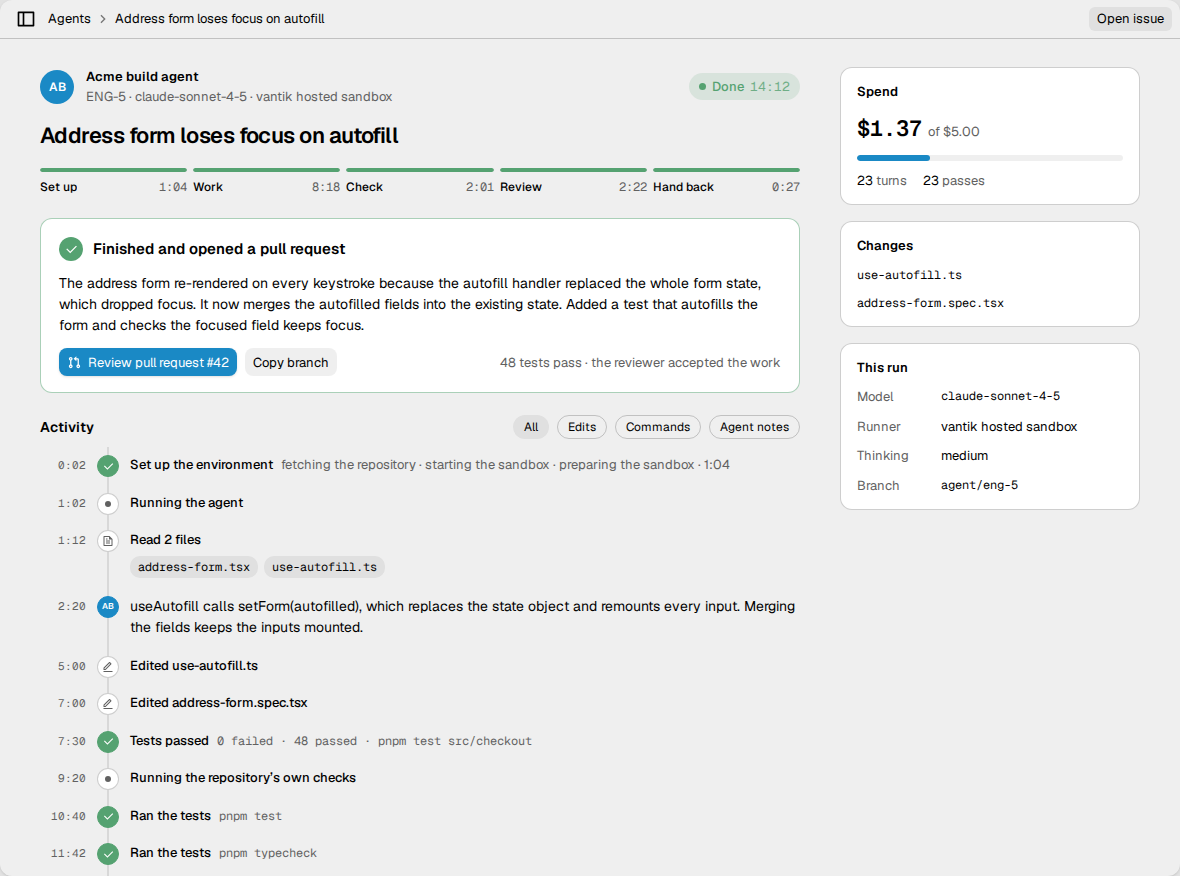
The statuses of a run
| Status | What it means |
|---|---|
| Waiting for a runner | The run waits to start. |
| Starting | A runner took the run, and starts it. |
| Working | The agent works on the issue. |
| Done | The work is finished, and nothing objected to it. |
| Needs a human | The work is finished, but no review accepted it. A person must decide if it is right. Read The review cycle. |
| Rejected | A person rejected the work of a run that had Needs a human. |
| Could not finish | The run failed. The page tells what broke and what to do. |
| Stopped | A person stopped the run. |
| The runner went away | The runner stopped and did not report back. |
A run that failed shows the reason, for example the environment would not build or it finished without changing anything. The outcome card shows the message of the run. If the run has no message, the card tells what to do next.
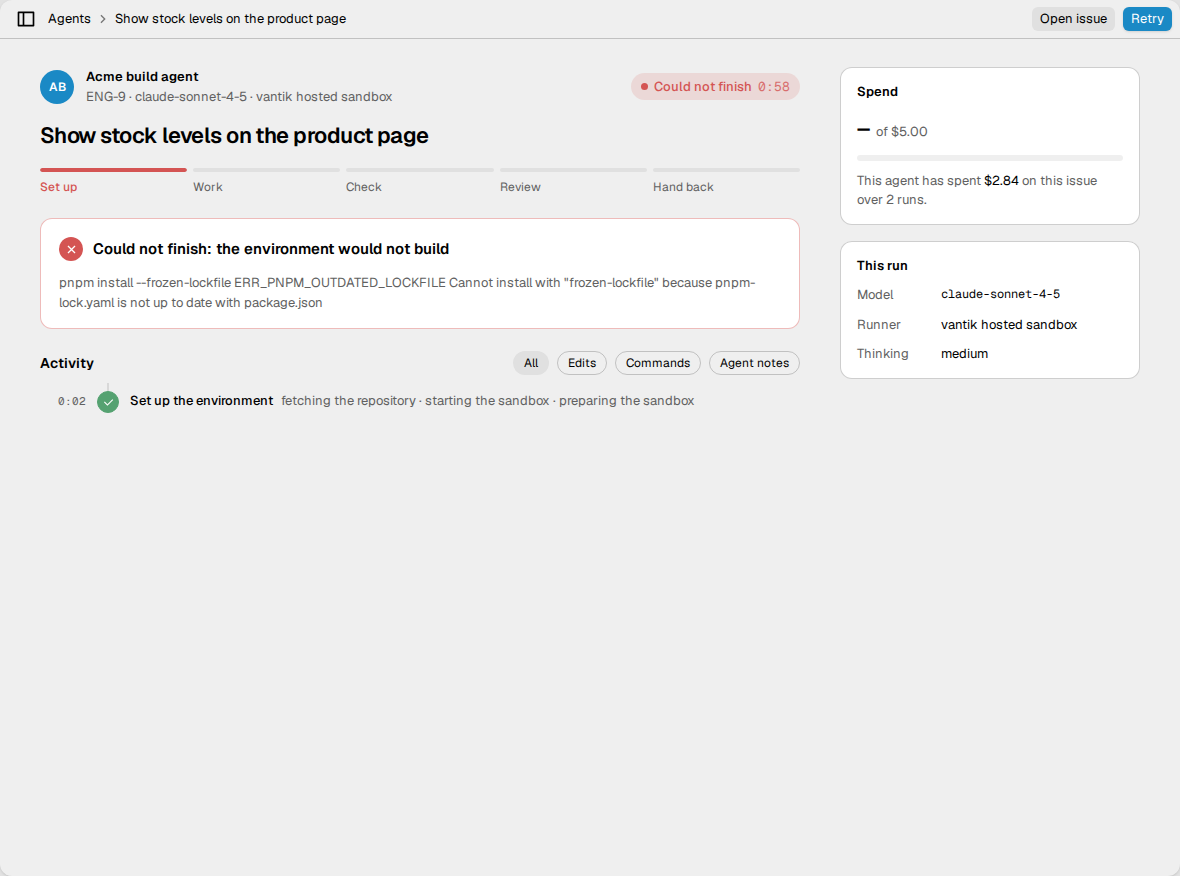
The Vantik hosted sandbox records no branch for a run that failed. So the run has nothing to clean up, and only Retry shows.
After a run
These actions are at the top of the page of the run. Some of them are also on the card of the run in the activity of the issue.
- Stop. This action stops a live run. Vantik does not ask you to confirm.
- Retry. This action starts a new attempt with the same settings. It shows when the run has Could not finish, The runner went away or Needs a human. On the card of the run, it is Try again. You can retry each run one time. By default, you cannot retry the third attempt. Then fix the cause, and delegate the issue again.
- Reject. This action shows on a run with Needs a human. It removes the work of the run.
- Clean up. This action shows on a run that failed, stopped or went away, if the run recorded a branch or a pull request. The Vantik hosted sandbox records them only on a run with Done or Needs a human. So on a run in the hosted sandbox, you see Reject, not Clean up.
Reject and Clean up do the same thing:
- Click Reject or Clean up.
- Read the dialog. It tells what Vantik closes and deletes.
- Click Reject or Clean up. To start a new attempt after it, click Reject and retry or Clean up and retry.
The dialog does not show Clean up and retry on a run with Stopped, because you cannot retry that run.
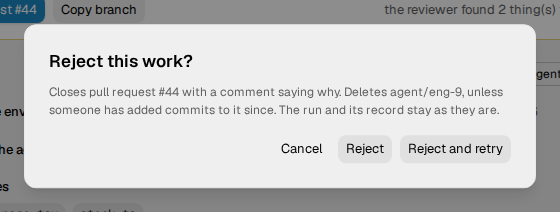
Vantik then does these things:
- It closes the pull request, with a comment that tells why.
- It deletes the branch. Vantik keeps the branch in these cases:
- A person added commits to the branch after the run.
- A person merged the pull request.
- The run recorded no last commit for the branch.
- It keeps the run and its record.
A message tells you what Vantik did. After you reject a run, the run shows Rejected, and the outcome card tells who rejected it and when.
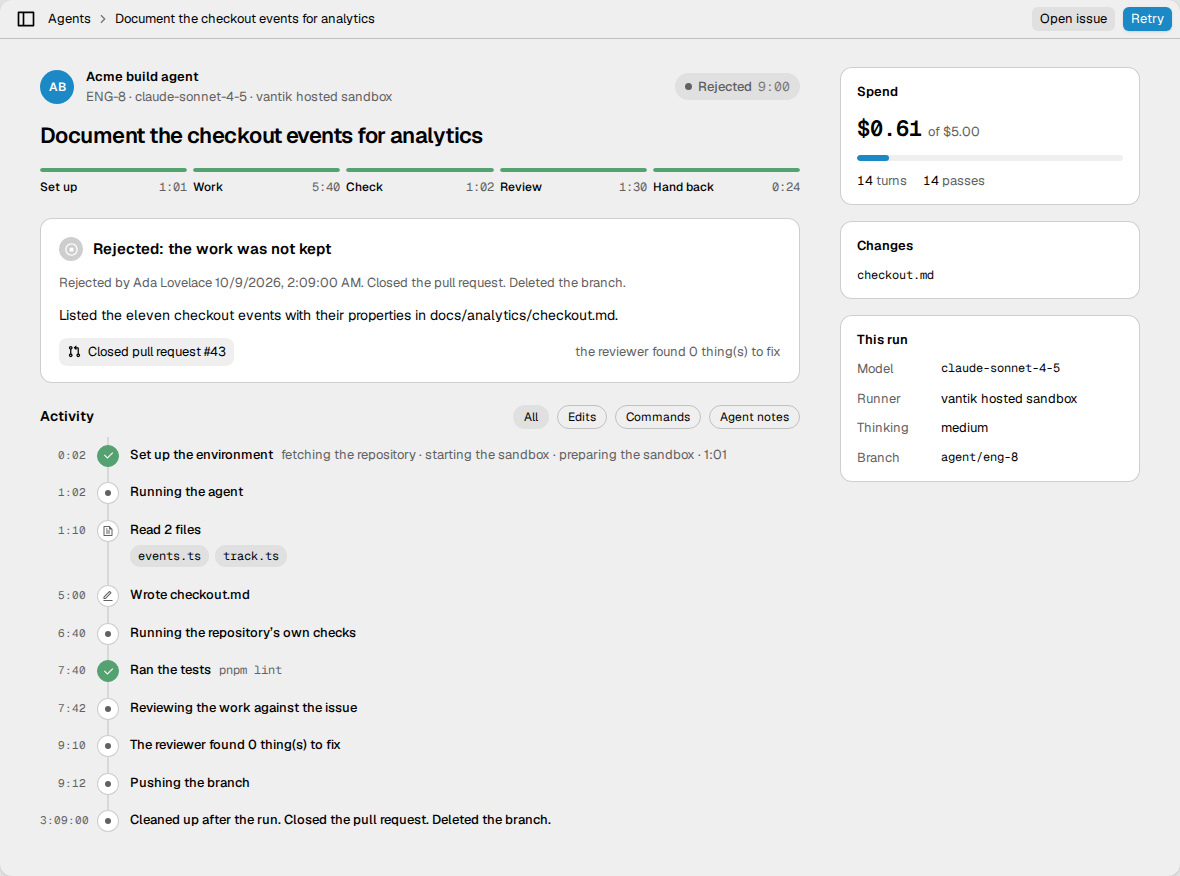
You cannot clean up a run that has Done. Its pull request is the work. If you do not want it, close the pull request on the host.